Worlds
Keep one shared canon and style guide for every project set in the same World.
A World holds the canon your projects share: who exists, what is true, and how everything should look. Open Worlds in the sidebar to see every World your team can reach, pick one to read its details on the right, and press Open world to go to its overview.
Worlds
Narrows the list to one status, with how many Worlds carry each. Pick All to see every World again.
- Open Worlds from the sidebar.
- Type in Search worlds… to narrow the list by name.
- In the rail, choose All or a status to show only Worlds with that status.
- Each status row counts the Worlds that carry it.
- List options in the rail's head can show archived Worlds too.
For agents
studio_read (type: studio_worlds_list)
Cover
The picture this World is shown with on lists and on Home. Drop an image on it, upload one, or choose one from your library.
- Select a World to show its panel on the right, on the Details tab.
- In Cover, open Set cover.
- Choose Upload image to pick a file, or Select from library and then Use as cover.
- You can also drop an image straight onto the picture.
- A cover is always a still image.
- The same cover shows at the top of the World's own overview.
For agents
world_write (type: world_cover_set)— fields:worldId,mediaId
World
Who owns this World, when it was made and when it last changed. Check it before you change a World someone else looks after.
- Open Worlds and pick a World from the grid or the table.
- On the Details tab of the right panel, find World under the cover.
- Read who owns the World and when it was made and last changed.
- Owner: the person who looks after this World.
- Created: when the World was made.
- Updated: how long ago anything in it last changed.
For agents
studio_read (type: world_get)— fields:worldId
Canon
How much this World knows: its entities, facts, relationships, events, eras and open conflicts. Pick a row to open the World model.
- Pick a World in the list.
- On the Details tab, find Canon.
- Pick any row to open that World's model.
- Entities: the characters, places, props and groups in the World.
- Facts: the statements the World holds to be true.
- Relationships: the links between entities.
- Events and Eras: what happens in the story, and the stretches of time it is grouped into.
- Conflicts: contradictions in the facts that are still open.
Projects
The projects made in this World. Pick one to open it.
- Pick a World in the list.
- On the Details tab, find Projects.
- Pick a project to open it. A World with no projects yet says so.
World settings
The World's name and the language its stories are written in. Change either one here.
- Pick a World in the list.
- Switch the right panel to Settings.
- Click Name or Default language, type the new value and leave the row to save it.
- Name: what the World is called everywhere in Rasu AI.
- Default language: the language its stories are written in. It reads English until you change it.
For agents
world_write (type: world_update)— fields:worldId,fields.name,fields.defaultLanguage
Identity
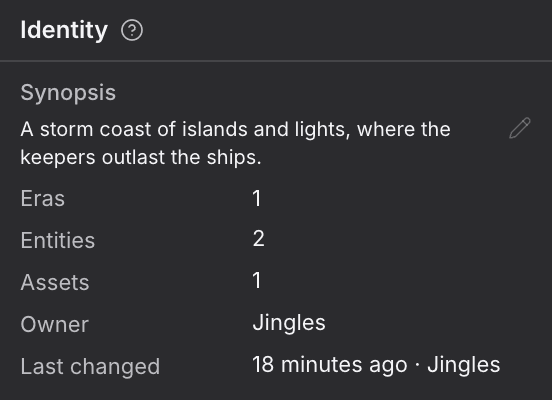
What this World is about in a few lines, with how many eras, entities and assets it holds. Write the synopsis here so everyone starts from the same idea.
- Open a World's overview.
- On the Details tab of the right panel, find Identity under the cover.
- Click Synopsis, write what the World is about, and click away to save.
- Synopsis: a few lines on the World's premise.
- Eras, Entities and Assets: how much the World holds.
- Owner and Last changed: who looks after it and when it last moved.
For agents
world_write (type: world_update)— fields:worldId,fields.synopsis
Needs attention
Things in this World that are waiting on you. Pick a row to go straight to it.
- Open a World's overview.
- If anything in the World is waiting on you, Needs attention shows at the top. When nothing is, the card is not drawn.
- Pick a row to go to the thing it names. A row Rasu AI cannot place says what it is but does not open.
For agents
studio_read (type: attention_list)
World Model
A few of the World's relationships and its latest event. Pick a row to open it in the graph or on the timeline.

- Open a World's overview and find World Model.
- Pick a relationship row to open it in the graph, or the event row to open it on the timeline.
- To see everything, press Inspect World Model in the page bar.
- Relationship rows: who is linked to whom, and how they feel about each other.
- Event row: the most recent event in story time, with how many changes it makes.
Facts
The first few things that are true in this World. Search facts narrows them, and Open facts shows the whole list.

- Open a World's overview and find Facts.
- Type in Search facts in the page bar to narrow the list to facts that mention your words.
- Pick a fact, or press Open facts, to see the full table in the World model.
For agents
world_fact (type: world_facts_upsert)— fields:worldId,subject,predicate,object
Style
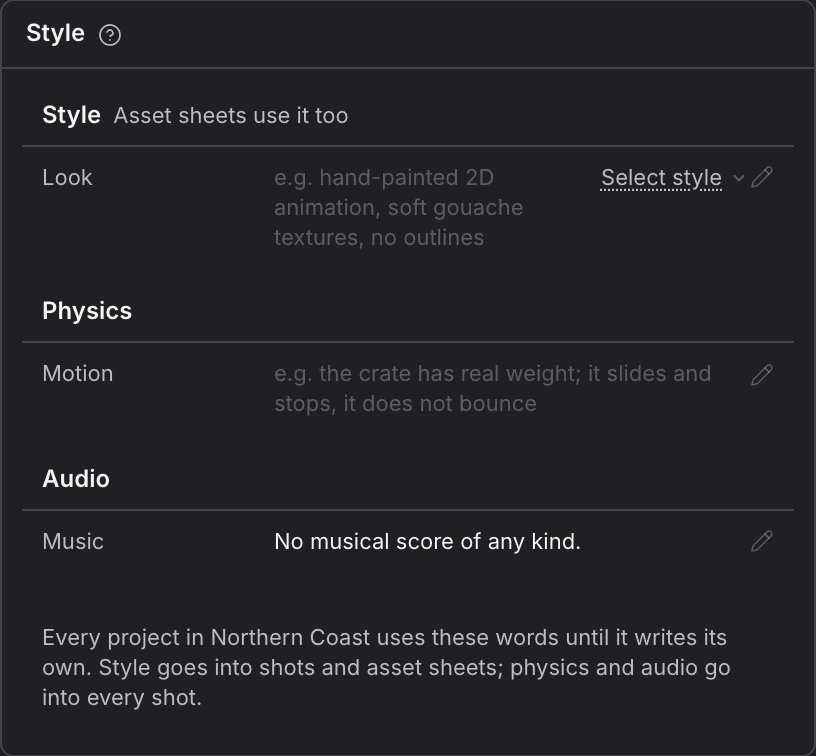
The look, physics and sound every project in this World uses until it writes its own. Change it here to change it for all of them at once.
- Open a World's overview and scroll to Style.
- Click a row and write how the World should look, move or sound.
- Leave the row to save. A row you have not written shows Rasu AI's starting words; Restore default puts them back.
- Style: the look. It goes into shots and into asset sheets.
- Physics: how things move. It goes into every shot.
- Audio: the music and sound. It goes into every shot.
Every project in the World uses these words until it writes its own.
For agents
world_write (type: world_style_update)— fields:worldId,fields.style.look,fields.physics.motion,fields.audio.music
Negative & Never
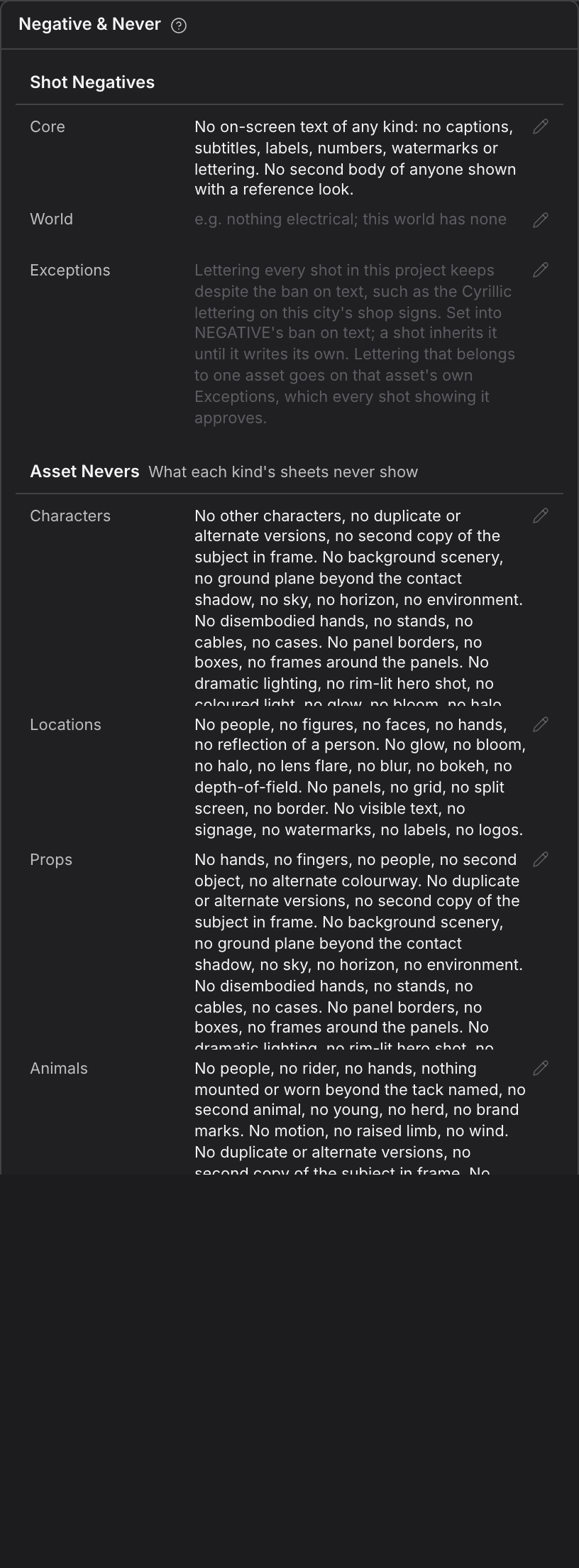
What this World's shots should never show, and what each kind of asset's sheets should never show. Every project in the World follows these.
- Open a World's overview and scroll to Negative & Never.
- Under Shot Negatives, write what no shot in the World should show.
- Under Asset Nevers, write what each kind of asset's reference sheets should never show.
- Leave the row to save.
- Shot Negatives: go into every shot of every project in the World.
- Asset Nevers: go into asset reference sheets only, never into a shot.
For agents
world_write (type: world_style_update)— fields:worldId,fields.negative.core,fields.negative.character,fields.negative.location,fields.negative.prop,fields.negative.animal,fields.negative.vehicle