Assets
Describe your characters, places and props once, so every image and shot shows them the same way.
An asset is anything that has to look the same from shot to shot: a character, a location, a prop. Open Assets in a project or a World, pick an asset from the list, and its page opens with what you write about it on the left and the looks it produces on the right.
Profile
The words that describe this asset, grouped the way its kind is described. Every image made for it is written from these rows.

- Open Assets and pick an asset from the list.
- On the Design tab, find Profile at the top of the left column.
- Click a row and type. The change saves when you leave the row.
- A row marked Default is using words your project or World already supplies. Type over it to give this asset its own.
| Part | What it does |
|---|---|
| Groups | The rows this kind of asset is described by, such as appearance for a character or set dressing for a location. |
| Default tag | Shows the row is using shared words rather than this asset's own. |
| Not saved mark | Appears while a change is still on its way to the server. |
For agents
asset_write (type: asset_update)— fields:assetId,rev,fields.blocks
Locks
Sentences that must always be true of this asset, in every image. Add one for anything that keeps drifting between pictures.

- In Profile, scroll to Locks.
- Press + in the Locks header to add a blank row.
- Type a sentence that must always hold, such as a scar on the left cheek.
- To remove a lock, clear its row or use its remove button.
- Always true: the list of sentences every image of this asset must keep.
- Add a lock: the + button that adds a new row.
For agents
asset_write (type: asset_update)— fields:assetId,rev,fields.blocks.positive_constraints
Standard sheet
The lines every sheet of this kind prints, such as the frame and the light. You can't edit them here; add to them with this asset's own Locks.
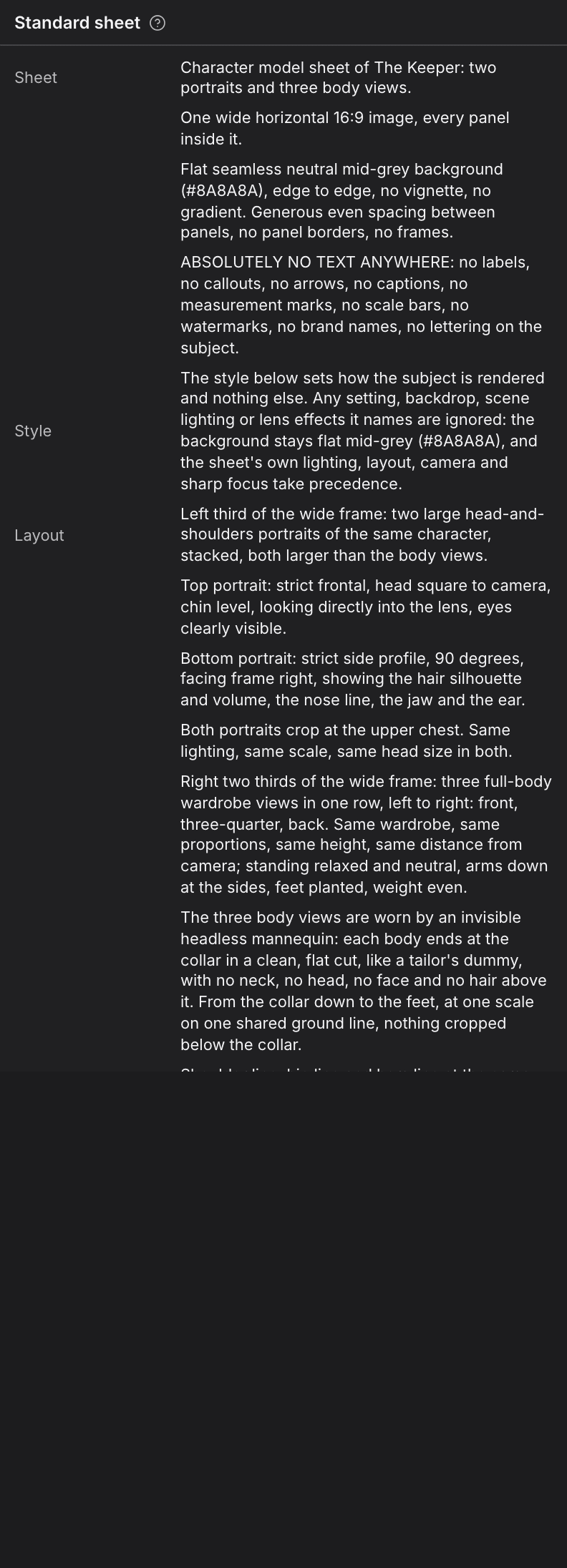
- In Profile, scroll to Standard sheet at the bottom.
- Read the lines grouped by heading, such as the frame and the light.
- To add to them for this asset, write a Lock above instead. These lines can't be changed here.
- Heading: the part of the sheet each line belongs to.
- Default tag and lock: every line is shared by all assets of this kind and is read-only.
Voice samples
Recordings of how this character sounds, each with the line spoken and how it was delivered. Drop a file here or pick one from your media.

- Open a character asset. Voice samples sits under Profile.
- Drop an audio file onto the card, or press Add a sample and choose Upload a file or Choose from library.
- Name the sample, and type the line and how it was delivered.
- To drop a sample, use its remove button. The recording itself stays in your files.
- Name: what you call this take.
- Line: the words spoken in it.
- Delivery: how it was said, such as whispered or shouted.
For agents
asset_sheet (type: asset_voice_sample_link)— fields:assetId,mediaId,label,line,deliveryasset_sheet (type: asset_voice_sample_update)— fields:assetId,sampleId,fields.delivery
Variants
The looks this asset comes in, each with its own input pictures, words and generated images. Generation options show the exact estimate in a starred badge beside Generate; star the image a look should use.
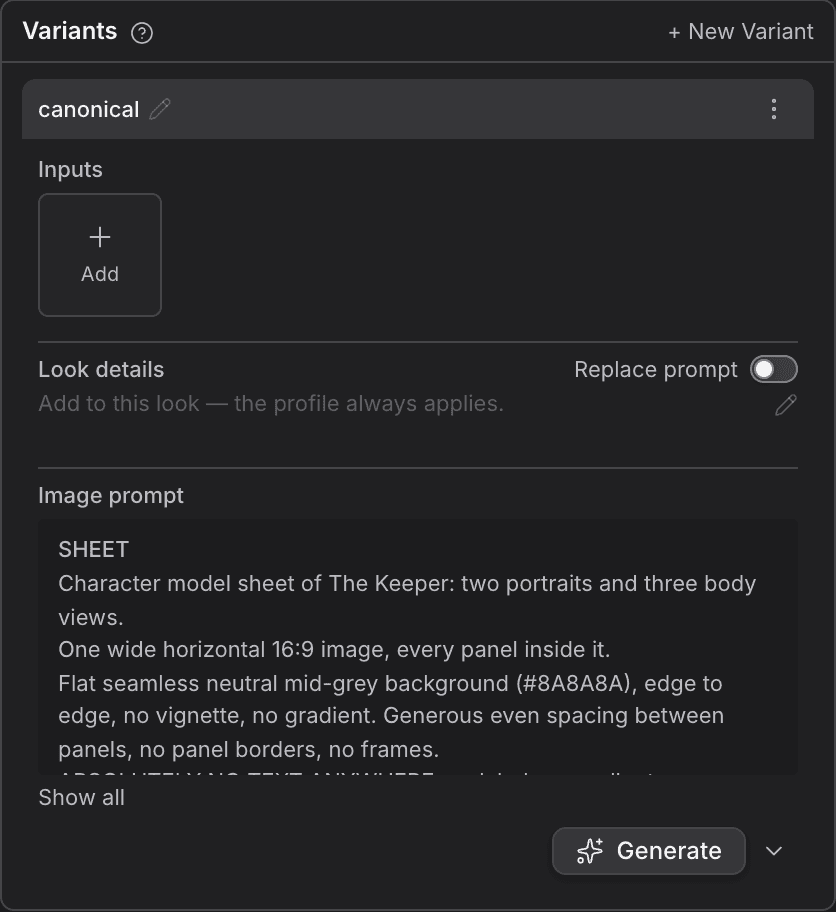
- On the right of the asset page, find Variants.
- Press + New Variant to start a new look, and name it.
- Under the look, press Add to give it input pictures, from an upload or your media library.
- Write what makes this look different. Turn on Replace prompt to use only your words instead of adding them to the profile.
- Press Generate, or choose Import… to bring in an image you already have.
- Star the image the look should use as its reference, and press the shield to send it for verification.
| Control | What it does |
|---|---|
| Inputs | Pictures the look is made from. |
| Prompt | Your words for this look. |
| Generate | Makes a new image from the inputs and words. Its options show the exact estimate in a starred badge beside Generate. |
| Star | Sets the image this look uses as its reference. |
| Shield | Sends an image to be checked by the video model. |
| New version | Makes another image from the same look. |
| ⋯ menu | Rename, save to the World, or delete the look. |
For agents
asset_look (type: asset_variant_create)— fields:assetId,label,addOnasset_look (type: asset_variant_update)— fields:assetId,variantId,op.fields.addOn,op.fields.inputsgenerate (type: asset_variant_generate)— fields:assetId,variantId
Facts
What the World holds true about this asset. Add a fact here and it joins the World's own list.

- Open an asset that belongs to a World and switch to the World tab.
- Read Facts for what the World holds true about it.
- Press Add fact to write a new one. It starts with this asset as its subject.
- Each row: what the fact says about this asset. A retracted fact is marked as such.
- Add fact: opens the fact composer for this World.
For agents
world_fact (type: world_facts_upsert)— fields:worldId,subject,predicate,object,subjectId
Journey
The World's events this asset was part of, in story order. Pick one to see it on the World's timeline.

- On the World tab, find Journey under Facts.
- Read the events this asset was part of, in story order.
- Click an event to open it on the World's timeline.
- When: where the event sits in the story.
- Event: its name. Click to open it.
For agents
world_fact (type: world_event_create)— fields:worldId,name,when,participants
Relationships
Who or what this asset is bound to in the World, and how. Pick one to open the other side.

- On the World tab, find Relationships.
- Each row names the kind of bond and who it is with. The colour shows whether the bond is friendly or hostile.
- Click a row to open the other side in the World model.
- Type: the kind of bond, such as sibling or rival.
- With: the other asset in the relationship.
- Open in world model: the button under the cards opens this asset in the full World model.
Likeness
How this character looks and speaks: height, eyes, marks and voice. Every look of the character shares these.
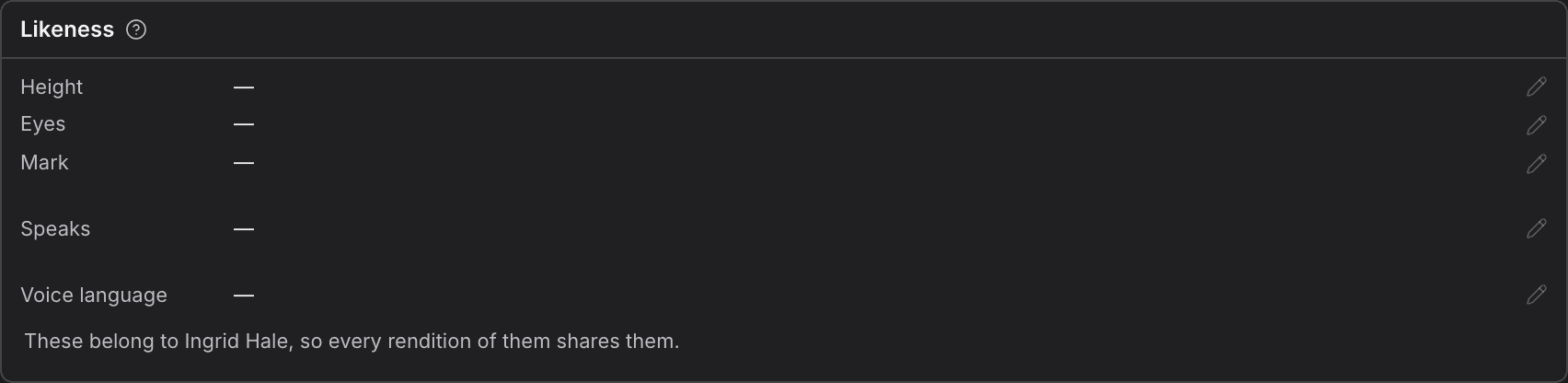
- Open a character that belongs to a World and switch to the World tab.
- Find Likeness at the bottom.
- Click a row and type. These belong to the character, so every look of them changes too.
| Row | What it holds |
|---|---|
| Height | How tall the character is. |
| Eyes | Their eye colour or shape. |
| Mark | A scar, tattoo or other mark that must always show. |
| Speaks | How they talk. |
| Voice language | The language their voice is in. |
For agents
world_cast (type: world_character_update)— fields:characterId,rev,fields.height,fields.eyes,fields.mark,fields.speaks,fields.voiceLanguage
Identity
The asset's name, kind and where it lives. You can rename it here; the kind is set when the asset is made.
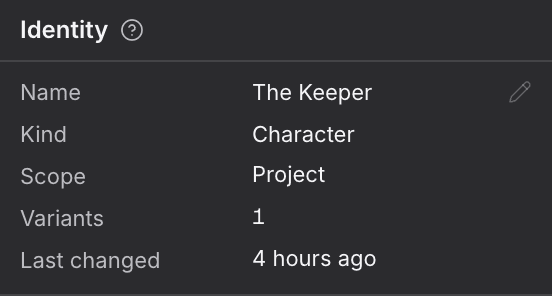
- Pick an asset. The details panel on the right opens on Details.
- Click Name to rename the asset.
- Read the other rows to see what kind it is, where it lives and when it last changed.
| Row | What it shows |
|---|---|
| Name | The asset's name. You can edit it. |
| Kind | Character, location, prop and so on. Set when the asset was made. |
| Scope | Whether the asset belongs to this project or to a World. |
| Variants | How many looks it has. |
| Last changed | When someone last edited it. |
For agents
asset_write (type: asset_update)— fields:assetId,rev,fields.name
Verification
Whether the video model will accept this asset's picture as a reference. Press the shield on an image to send it.
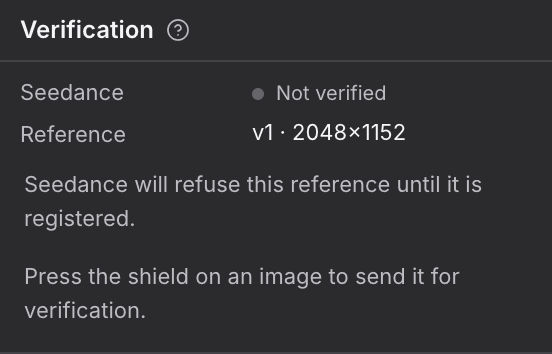
- In the details panel, find Verification near the bottom.
- Read whether the reference image is accepted, waiting or refused.
- To send an image, press the shield on that image in Variants and confirm.
- If it was refused, the note under the rows says what to change.
| Row | What it shows |
|---|---|
| Seedance | Where verification stands for the video model. |
| Reference | Which image is the reference, and its size. |
| Last checked | When it was last checked, and by whom. |
For agents
asset_write (type: asset_verify)— fields:assetId,versionIds