Studio basics
The cards you meet on many screens of the video studio, and how to use each one.
A few cards turn up all over the video studio: the nav on the left of a project or World, the tag field, the crew's notes and the list of recent changes. They work the same wherever you meet them, so they are explained once here. Select the ⓘ beside any card's name to read what it is for.
Project
Every part of this project, one row each. Pick a row to go there; the part you are in stays highlighted.
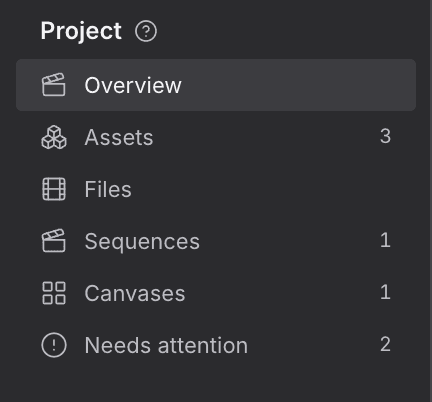
- Open any project.
- In the left panel, select a row to go to that part of the project.
- Check which row is highlighted to see where you are.
- Overview is the project's home page.
- Assets and Files are the project's library. Relationships on the Assets page shows who the project's characters are to each other.
- Sequences lists the project's work.
- Needs attention lists what is blocked, failed or flagged in this project.
World
Every part of this World, one row each. Pick a row to go there; the part you are in stays highlighted.
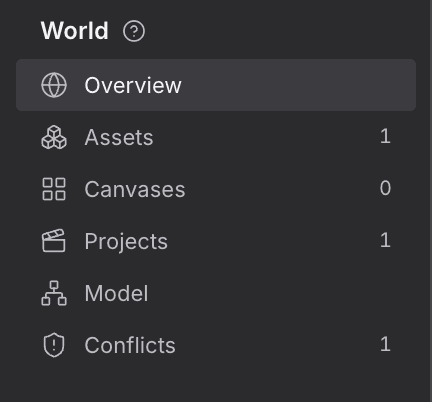
- Open any World.
- In the left panel, select a row to go to that part of the World.
- Check which row is highlighted to see where you are.
Each row is one part of the World. A number beside a row counts what is in it.
Tags
Short labels you put on a record so you can find it again. The status and filter lists beside it are built from these same tags.
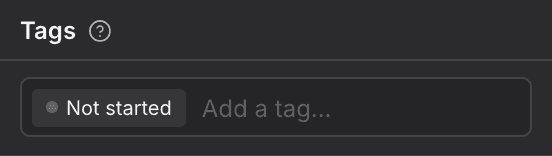
- Open a record so its panel shows on the right.
- In Tags, type a word. The list suggests labels this project already uses, with how many records carry each one.
- Press Enter or pick a suggestion to add it.
- To take a tag off, remove its chip.
- A status tag sets the record's status. A record has one status at a time, so a new one replaces the old.
- A team tag names a person on your team and shows their face and name.
- Any other word is a plain label you can filter by.
- On a file, outlined chips come first. They are read from the file itself, such as its kind, so you can't edit or remove them. In Files, click one to filter the library by it.
The status rail and the filter lists on list pages are built from these same tags.
For agents
library_write (type: tag_add)— fields:kind,id,taglibrary_write (type: tag_remove)— fields:kind,id,tag
Crew notes
What the crew noticed when they checked this, each note with the role that wrote it and its verdict, and on a shot what it still needs before it can be generated. It only shows when there is something to say.
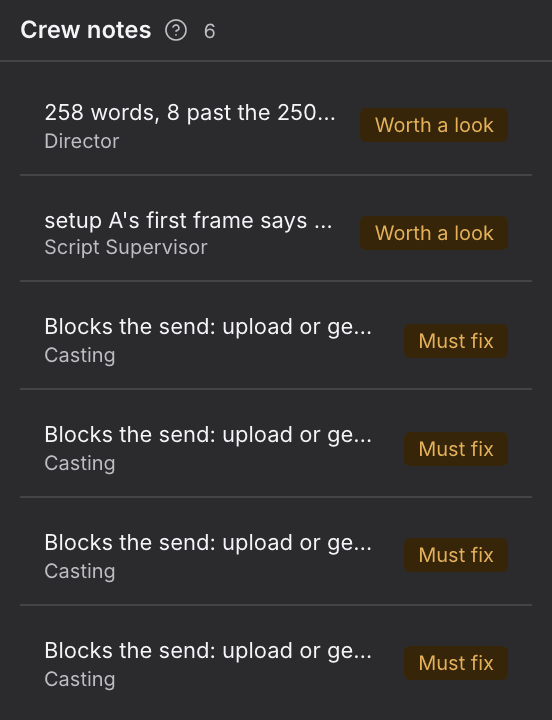
- Open a shot or a project asset.
- If the crew has something to say, Crew notes appears in its panel. The header also shows a chip with the number of notes.
- Read each note, then fix what it points at.
- Each row says what the crew noticed.
- The line beneath names the role that wrote it, with any detail.
- The chip on the right is the verdict. A warning colour means it is worth a look.
The group is read-only and only appears when there is a note to show.
For agents
engine (type: engine_check)— fields:concept,id
Recent changes
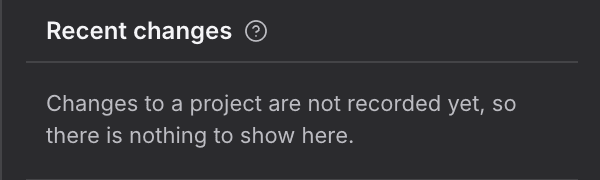
What changed on this record and when, with who made the change where that is known. Projects and Worlds don't keep this list yet, so theirs says so.
- Open a record so its panel shows on the right.
- Choose the History tab.
- Read Recent changes, newest first.
- Each row says what changed and when.
- Where it is known, the row also names who made the change.
- A record with nothing recorded says No changes yet.
- Projects and Worlds do not keep this list yet. Their Recent changes says so instead of showing rows.