Projects
Find a project, open it, and keep its sequences and details in order.
A project holds one piece of video work: its sequences and shots, its assets and its look. The Projects list shows every project your team has. Opening one takes you to its home page, with its details in the panel on the right.
Projects
Narrows the list to one status, with how many projects carry each. Pick All to see every project again.
- Open Projects from the sidebar.
- Type in Search projects… to narrow the list by name.
- In the rail, choose All or a status to show only projects with that status.
- Use the sort menu to order by last updated, name or status, and switch between a grid and a table.
- Select a project to see its details on the right, or open it.
- Each status row counts the projects that carry it.
- List options in the rail's head can show archived projects too.
- New project in the bar starts a new one.
For agents
studio_read (type: studio_projects_list)— fields:archived
Continue where you left off
Shortcuts back to the shots and board you worked on last in this project. It shows once there is something to go back to.

- Open a project.
- In Continue where you left off, select a row to go back to it.
- The rows are the shots you touched most recently.
- The card only appears once there is something to go back to.
Sequences
The sequences in this project, in the order they play, with how many of each one's shots are done. Search or filter them, or start a new one.

- On the project's home page, find Sequences.
- Type in Search sequences… or pick tags to filter the list.
- Select a sequence to open it.
- Choose New sequence to add one, or All sequences to open the full list.
- Each row shows how many of its shots have a selected take.
- While a filter is on, the head reads how many of the sequences are showing.
- If nothing matches, the card says No sequence matches this filter.
- A brand-new project says Nothing in this project yet instead.
For agents
sequence_read (type: seq_sequences_list)— fields:projectIdsequence_write (type: seq_sequence_create)— fields:projectId
Cover
The picture this project is shown with on lists and on Home. Drop an image on it, upload one, or choose one from your library.
- Select a project to show its panel on the right, on the Details tab.
- In Cover, open Set cover.
- Choose Upload image to pick a file, or Select from library and then Use as cover.
- You can also drop an image straight onto the picture.
- A cover is always a still image.
- Double-click the picture to see it larger.
For agents
project_write (type: project_cover_set)— fields:projectId,mediaId
Identity
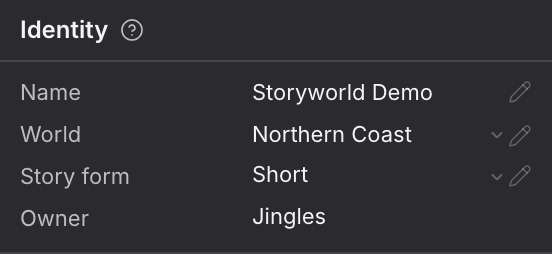
What this project is called, the World it belongs to and the kind of story it tells. Change any of them here.
- Select a project to show its panel on the right.
- In Identity, change any row you need. Each change saves on its own.
| Row | What it does |
|---|---|
| Name | The project's name, shown everywhere it appears. |
| World | The World this project draws its assets and rules from. |
| Story form | Whether this is a feature film, an episode, a short or an ad. |
| Owner | Who made the project. You can't change it here. |
For agents
studio_read (type: project_get)— fields:projectIdproject_write (type: project_update)— fields:projectId,fields.name,fields.worldId,fields.form
Progress
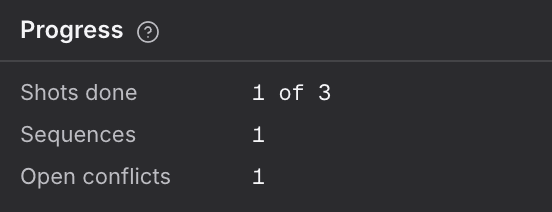
How far along this project is: shots done, sequences, and open conflicts with its World. Open conflicts takes you to them.
- Select a project to show its panel on the right.
- Read Progress to see how far along it is.
- If there are open conflicts, select that row to go to the World's conflicts.
- Shots done reads how many shots have a selected take, out of all the shots.
- Sequences counts the project's sequences.
- Open conflicts counts the World's unresolved conflicts. It only links when the project has a World.
The panel's head also has Open project, and its ⋯ menu offers Archive (or Restore), Move to team, Delete and Copy id.
Move to team shows when you are an Owner or Admin of the project's team and belong to another team. Pick the team it goes to and press Move. Its sequences, shots and files go with it, and its credit history stays with the team it left. A project in a World can't move until you clear its World field, and one with generations running can't move until they finish. Once it moves, the toast offers Open in that team.