Shots
Fill in a shot's fields, see the prompt they build, generate takes and pick the one that plays in the cut.
An open shot is the page where you direct one moment of your film. The left column holds the shot's fields, one card per category; the right column shows the take in the cut, the prompt your fields build, and the storyboard. Everything you write saves on its own.
Shots
Every shot in this sequence, in order. Click one to switch to it, or Board to see them all side by side.
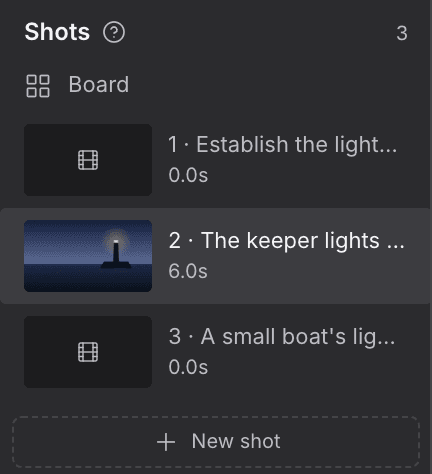
- Open a sequence and click a shot in the Shots list on the left.
- Click another row to switch shots, or Board to see every shot side by side.
- Choose New shot at the foot of the list to add one after the last shot.
- The open shot's row is highlighted.
- Each row shows the shot's picture, its number and what happens in it, its length, and how many fields are still missing.
- An amber dot marks a shot with fields still missing.
For agents
sequence_read (type: seq_shots_list)— fields:sequenceIdseq_shot_create— fields:sequenceId,n,intent
Assets
Where the shot happens and who and what is in it. Each pick sends that asset's picture to the model, so faces and places stay the same from shot to shot.
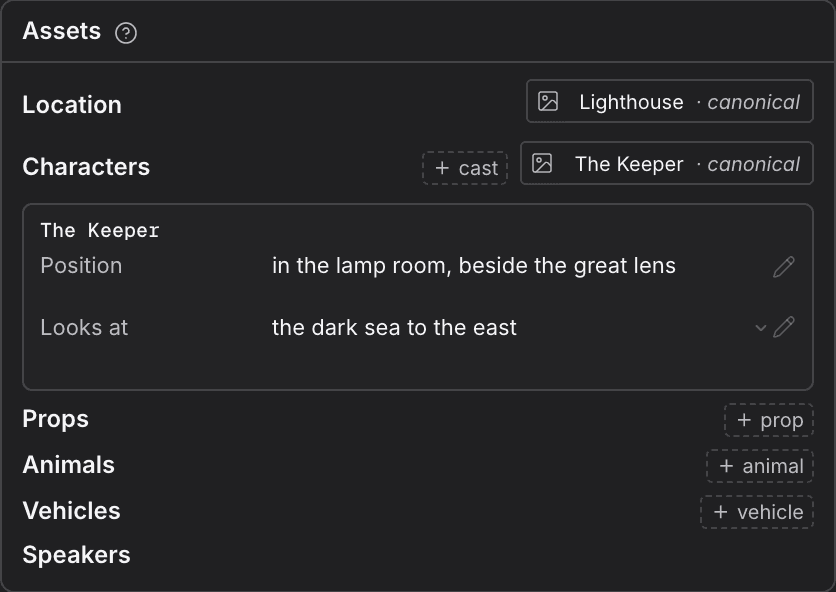
- In Assets, choose set the location and search for the place the shot happens.
- Choose cast to add the characters in the shot.
- Add props, animals and vehicles the same way, each with its own search.
- Under Speakers, pick who speaks from this shot's cast, then choose their voice: one of their voice samples, or the last choice in the list to go without a recording.
- To take an asset out, use the remove mark on its row.
| Row | What it holds |
|---|---|
| Location | The one place the shot happens. |
| Characters | The cast in the shot. |
| Props | Objects the shot needs. |
| Animals | Animals in the shot. |
| Vehicles | Vehicles in the shot. |
| Speakers | Who speaks, picked from the shot's cast, each with a voice. A voice sample travels with the prompt. With no recording, the model makes the voice up, and the shot says so above Generate. |
The pickers only offer this project's assets. If the shot's model has no room left for another picture or voice, the picker says why instead of adding it. Assets has no + for rows of your own.
For agents
seq_shot_update— fields:fields.assets.location,fields.assets.characters,fields.assets.props,fields.assets.animals,fields.assets.vehicles,fields.assets.speakers
Actions
What happens in the shot, beat by beat, with how long each beat lasts. The beats add up to the shot's length, and a shot holds up to six.
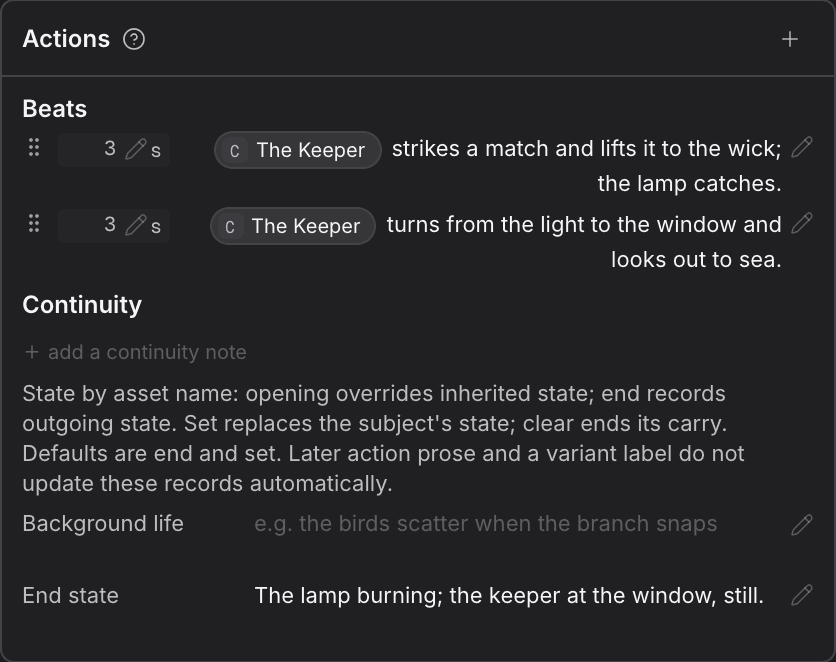
- In Actions, type into add a beat and press Enter to add the first beat.
- Give each beat its Seconds and its Text, the action in words.
- Add a continuity note with add a continuity note when something must carry into or out of this shot.
- Fill Background life and End state if the shot needs them.
- Use
+in the card's head to add a row of your own.
| Row | What it holds |
|---|---|
| Beats | What happens, in order, each with its seconds. The beats add up to the shot's length. A shot holds up to six beats; put what happens next in a new shot. |
| Continuity | Notes on a subject's state: who or what, the state, whether it applies at the opening or the end, and whether it sets or clears a carry. |
| Background life | What moves behind the main action. |
| End state | Where things stand when the shot ends. |
For agents
seq_shot_update— fields:fields.actions.beats,fields.actions.continuity,fields.actions.backgroundLife,fields.actions.endState
Camera
How the camera sees the shot: each setup's lens, framing, angle and move. Leave a row empty and the model chooses.
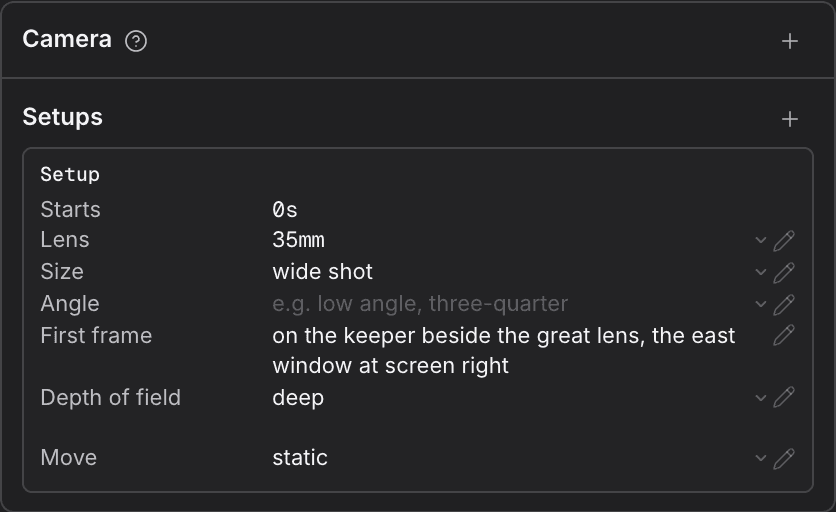
- In Camera, choose Add a setup. One press adds a whole setup ready to play.
- Set the setup's rows. Pick from each menu or type your own words.
- To cut to another angle within the shot, choose Add another setup and set where it starts.
- Remove a setup with the remove mark on its row.
| Row | What it sets |
|---|---|
| Starts | When the setup takes over. The first setup always starts the shot. |
| Lens | The lens, in millimetres. |
| Size | How much of the subject the frame holds. |
| Angle | Where the camera looks from. |
| First frame | The frame the setup opens on, in one sentence. |
| Depth of field | How much of the picture is sharp. |
| Move | The one camera move, or a held frame. |
| Move seconds | How long the move lasts. Shown only when there is a move. |
When a long shot has more than one setup, a note under them suggests it may read better as two shots.
For agents
seq_shot_update— fields:fields.camera.setups
Style
The look and lighting of this shot. Rows tagged Project or Sequence show shared words until you write this shot's own.
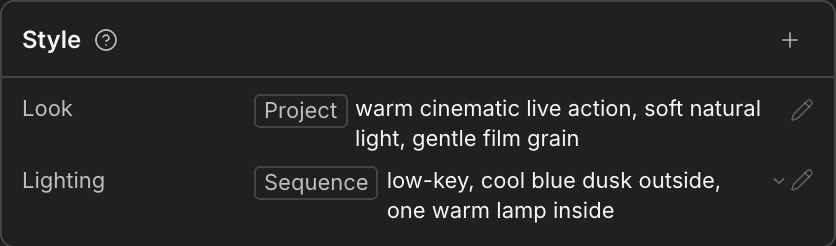
- In Style, select Look or Lighting and type this shot's words.
- A row tagged Project or Sequence is showing shared words. Typing over it gives this shot its own.
- To go back to the shared words, open the row's pencil menu and reset it.
- Look is the picture's overall style.
- Lighting is the light in the shot. A sequence can set it for all its shots in Sequence config.
- Rows your project's style guide added show up here too, tagged Project.
For agents
seq_shot_update— fields:fields.style.look,fields.style.lighting
Audio
The sound and music under this shot. The music follows the project's until you write over it here.
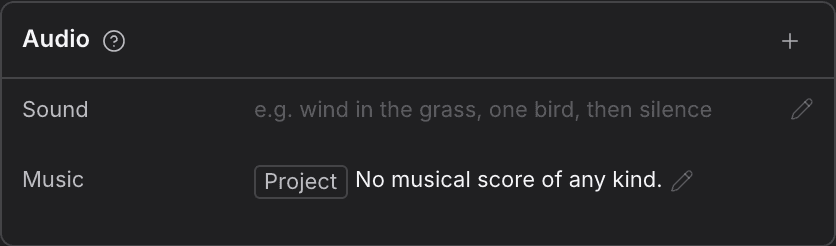
- In Audio, type the shot's Sound: what you hear in the scene.
- Type its Music, or leave the project's music in place.
- Reset a row from its pencil menu to bring the shared words back.
- Sound is the scene's own sound.
- Music follows the project's until you write this shot's own.
For agents
seq_shot_update— fields:fields.audio.sound,fields.audio.music
Physics
How bodies and things move in this shot. It shows the project's words until you write this shot's own.
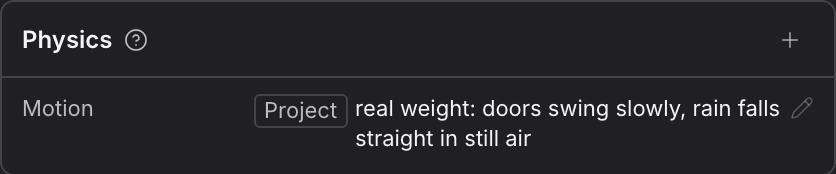
- In Physics, select Motion and type how bodies and things should move in this shot.
- Reset it from the pencil menu to go back to the project's words.
Motion shows the project's words, tagged Project, until you write this shot's own.
For agents
seq_shot_update— fields:fields.physics.motion
Negative
What the model should keep out of this shot. It shows the project's list until you write this shot's own.
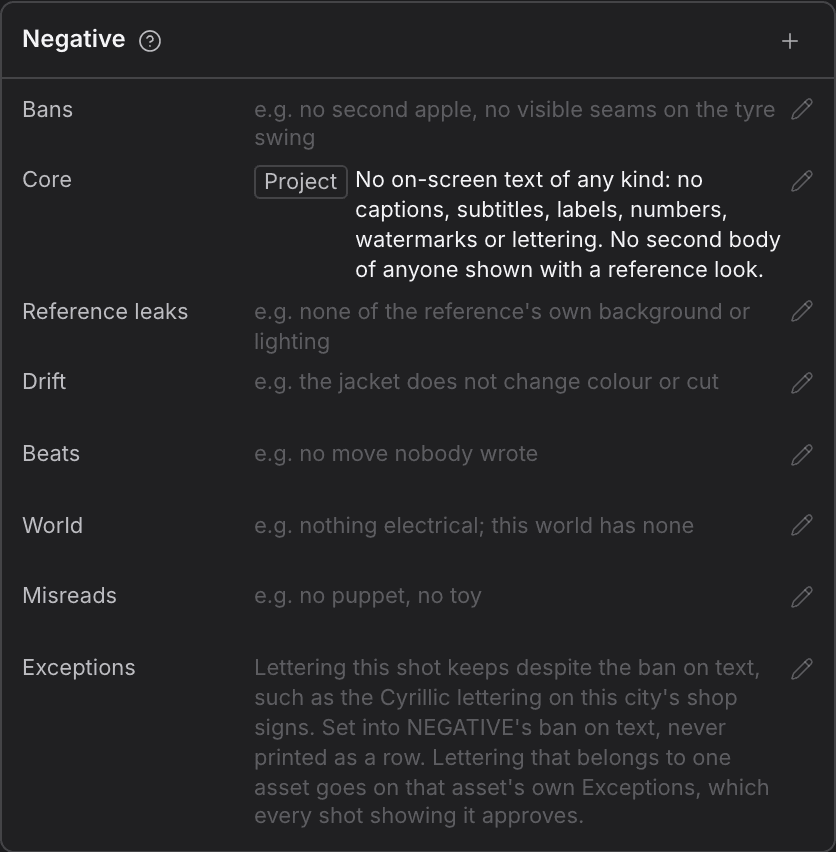
- In Negative, select a row and add what the model should keep out.
- To drop a row this shot does not need, use the bin on it. Bring it back from the
+in the card's head. - Reset a row from its pencil menu to go back to the project's list.
| Row | What it keeps out |
|---|---|
| Bans | Anything this shot must not show. |
| Core | What no shot should show, such as on-screen text. |
| Reference leaks | What a reference picture must not bring with it, such as its own background. |
| Drift | Changes that must not creep in, such as a costume changing colour. |
| Beats | Action nobody wrote. |
| World | What your world does not have. |
| Misreads | What the model might take the subject for instead. |
| Exceptions | Lettering this shot may show despite the ban on text. |
For agents
seq_shot_update— fields:fields.negative.bans,fields.negative.core
Format
Format settings your project added for every shot. It appears once the project has one, and shows the project's words.
- Add a format row in your project's style guide. Every shot then shows a Format card.
- On a shot, type over a row to give this shot its own words, or reset it from the pencil menu.
The card only appears once the project has a format row. Its rows are tagged Project until a shot writes its own, and the card cannot be removed from a shot.
Added categories
A group you or a connected model added to this shot. Its rows go into the prompt like any other, and the bin on its head removes it.
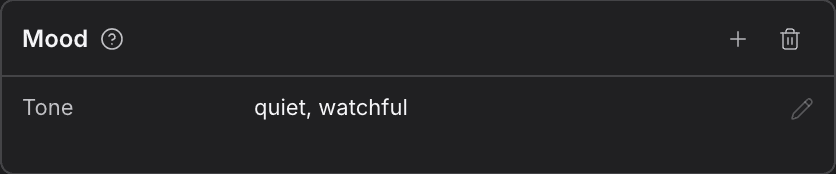
- Below the last card, type a name into add a category and press Enter.
- Before you type, use the menu beside it to choose where the new category prints in the prompt.
- Use
+on the new card to add rows, then name and fill each one. - To remove the whole category, choose the bin in its head and confirm.
- An added category goes into the prompt like any other card.
- A connected model can add categories too, and they show here the same way.
- Names a shot already uses, or that Rasu AI keeps for itself, are refused.
For agents
seq_shot_update— fields:fields
Frame
The take this shot plays in the cut. Double-click the picture to see it larger.
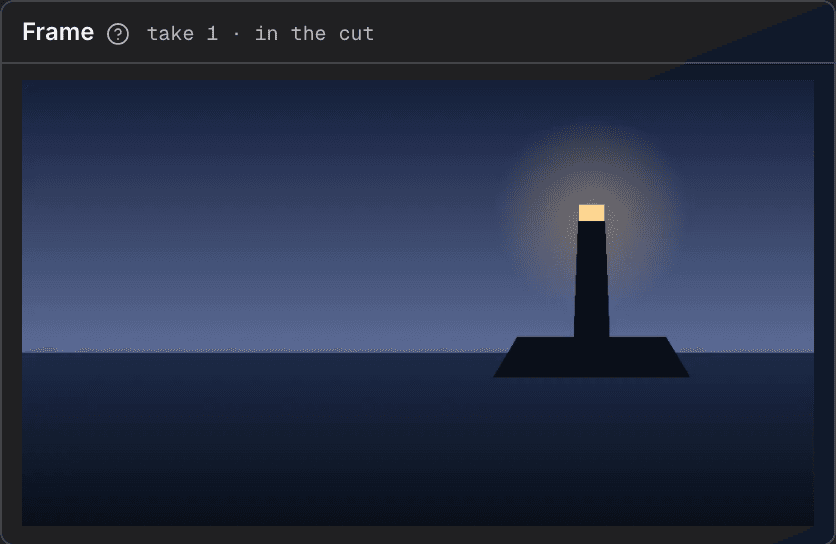
- Pick a take in the take strip under Generate. That take goes into the cut and plays here.
- Play it in the card.
- Double-click the picture to see it larger.
The head names the take, such as take 2 · in the cut. The card is not shown while no take of the shot is in the cut.
For agents
generation_read (type: gen_takes_list)— fields:sequenceId,nshot_manage (type: gen_take_cut_set)— fields:sequenceId,takeId
Compile
What the model receives for this shot: its inputs and the prompt built from the fields. Generate makes a take for the strip below; its options show the exact estimate in a starred badge, and Use in cut makes it the take this shot plays.

- Under Inputs, choose Add and pick Select from assets, Upload file or Select from media library. You can also drop files on the inputs.
- In Shot details, write anything you want added to the prompt. Mention an asset by name to add it as an input.
- Turn on Replace prompt to write the whole prompt yourself. Nothing from the fields is added then.
- Read Video prompt to see exactly what will be sent.
- Choose Generate. Hover it first to see what it costs and the frame shape it makes. In Video with options…, read the exact estimate badge beside Generate before choosing it.
- Each take lands in the strip below. Choose Use in cut on a take, or in its menu, to put it in the cut. Double-click a take, or select it and press Space, to see it larger.
| Part | What it does |
|---|---|
| Inputs | The pictures and files sent with the prompt. |
| Shot details | Your own words for this shot, added to the fields. |
| Replace prompt | Uses your words as the whole prompt. The prompt's label then reads Video prompt · fields replaced. |
| Video prompt | The prompt built from the fields, exactly as it is sent. |
| Unset | The fields this shot leaves empty, so the model picks them. |
| Generate | Makes a take. Its menu also has Video with options…, where the exact estimate appears in a starred badge beside Generate, and Import a take…. |
| Take strip | Every take of the shot. A take's menu offers Generate preview, History and Delete. Archived takes are dimmed. |
Warnings show in amber above Generate. If something stops the shot being generated, the reason shows in red and Generate waits until it is fixed. Drop a video or picture on the card to import it as a take.
For agents
preview (type: seq_shot_compile)— fields:sequenceId,npreview (type: seq_shot_estimate)— fields:sequenceId,nseq_shot_update— fields:fields.addOn,fields.replacePrompt,fields.assets.filesgenerate (type: seq_shot_generate)— fields:sequenceId,n,compileReceiptgeneration_manage (type: gen_take_verdict_set)— fields:takeId,verdict
Blocking still
One picture of the shot's opening frame: who stands where, from the first camera. Approve it and the clip opens on it, until a character or the camera moves.
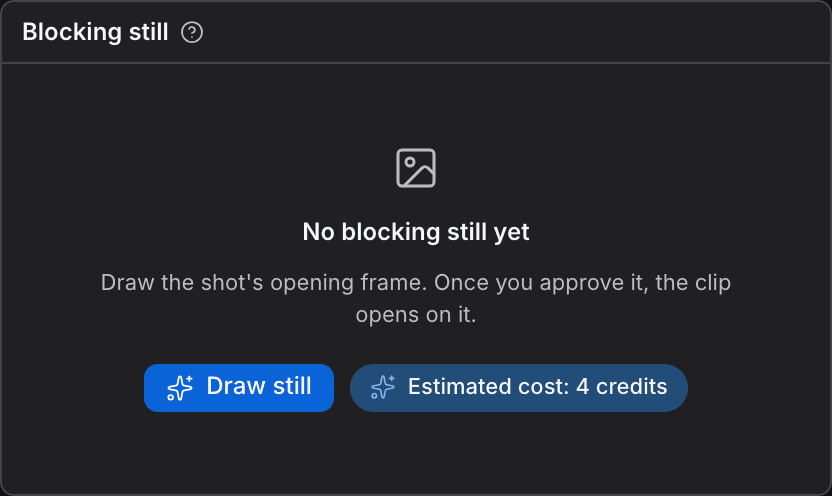
- Place at least one character in the shot. With nobody placed there is no opening frame to draw, and the card says so.
- Choose Draw still. The price shows beside the button before you spend anything.
- Look at the still. If it is the frame you want, choose Approve. If not, choose Draw again.
- Once a still is approved, the shot's next clip opens on it. The card shows who approved it and when.
- Choose Clear to stop using the still. The clip then opens from the shot's words alone.
An approved still holds only while nothing it pictured changes. Move a character, change the first camera setup, the location or the frame shape, and the approval lapses: the card and the warning above Generate both say the clip will open from the words alone until you approve a new still. A model that cannot open a clip on a picture says so before you generate.
Storyboard
A drawn plan of the shot, one panel for each beat, made or redrawn by copying the request into your connected model. Choose Use this storyboard when generating and the shot's video follows the sheet.

- Give the shot at least one beat in Actions. With none, the card says No storyboard yet and offers Add a beat. A shot with more than six beats has no storyboard until it is split.
- Copy the request in the card and paste it into your connected model to draw a sheet.
- Once a sheet is drawn, choose Copy prompt to redraw storyboard to ask for a new one.
- Choose Use this storyboard when generating to have the shot's video follow the sheet. The sheet joins Inputs under Compile as Storyboard, and the prompt gains a STORYBOARD part you can read before you generate.
- Choose Stop using this storyboard, or remove Storyboard from Inputs, to generate without it.
A sheet has one panel for each of the shot's beats, in order, drawn in the shot's own aspect. The head names the sheet, such as sheet 1, and a chip says how old it is. A storyboard is never sent with a generation until you choose to use it, and a new sheet does not take over from the one you chose. If you change the shot after choosing a sheet, a warning above Generate says the storyboard is older than the shot. Drawing a storyboard happens in your connected model, not on this page.
For agents
sequence_read (type: storyboard_context_get)— fields:sequenceId,ngenerate (type: storyboard_generate)— fields:sequenceId,n,planshot_manage (type: storyboard_star_set)— fields:sequenceId,n,sheetN,starred
Animation preview
A quick 3D blocking of the shot from its assets and beats. Play it here, or open the full preview to look around the set.
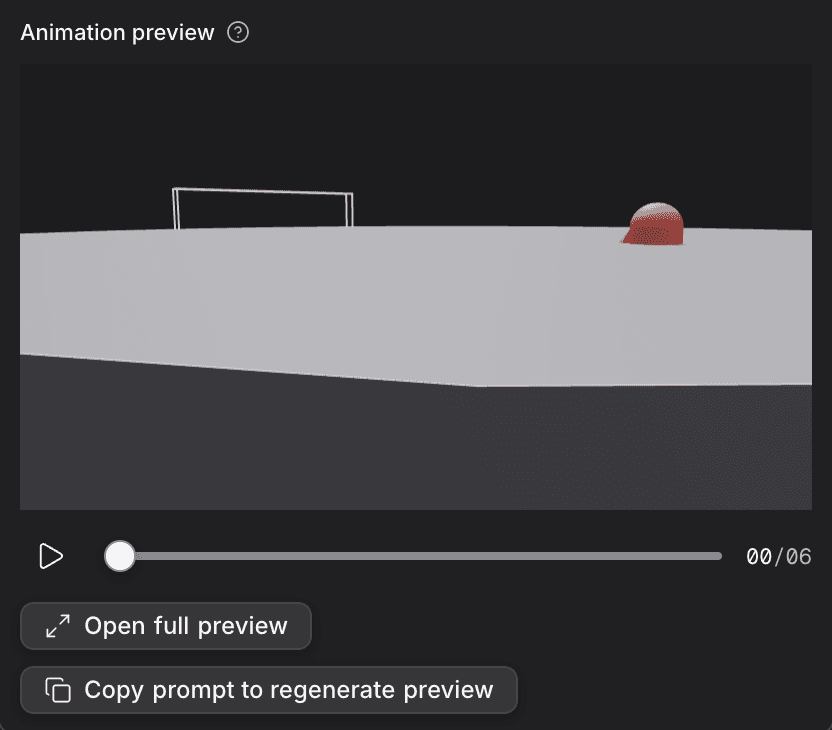
- Find Animation preview under the storyboard.
- With no preview yet, copy the request and paste it into your connected model.
- Once there is one, press play or drag along the transport to scrub.
- Choose Open full preview to look around the set.
- Choose Copy prompt to regenerate preview to ask your model for a fresh one.
The preview is a rough 3D blocking made from the shot's saved assets and beats. It is a plan for the shot, not generated video. See Animation preview for the full view.
For agents
sequence_read (type: animation_preview_get)— fields:sequenceId,nshot_manage (type: animation_preview_set)— fields:sequenceId,n
Shot
The shot's name, number, length and frame shape. Rename it here or give it a frame shape of its own.
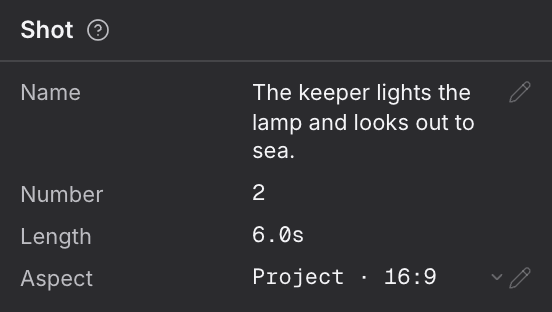
- With a shot open, find the Shot card on the right.
- Select Name and type a new one.
- Pick an Aspect to give this shot a frame shape of its own. Until you do, it follows the project.
- Use the menu in the panel's head to archive, restore or delete the shot.
| Row | What it shows |
|---|---|
| Name | What happens in the shot. You can edit it here. |
| Number | The shot's place in the sequence. Locked. |
| Length | The sum of the shot's beats. Locked; change the beats to change it. |
| Aspect | The frame shape a take is asked for. |
Crew notes appear under the card when the crew's check of the shot has something to say.
For agents
seq_shot_update— fields:sequenceId,n,fields.intent,fields.aspectshot_manage (type: seq_shot_archive)— fields:sequenceId,n
Script
The shot read as a script: where it plays, then each beat with its spoken lines. It follows your edits in Actions.
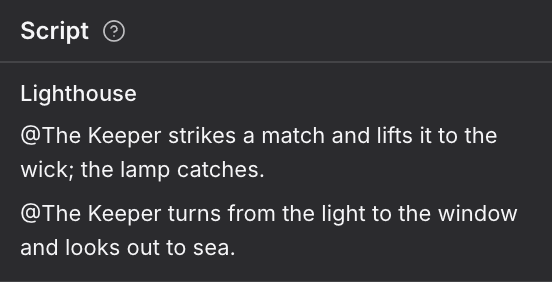
- With a shot open, scroll the right panel to Script.
- Read the shot as a script: where it plays, then each beat with its spoken lines.
The script is read-only. Edit the beats in Actions and it follows.
For agents
sequence_read (type: seq_shot_get)— fields:sequenceId,n