World model
Read and edit everything your World knows as a graph, a timeline, a table of facts or one entity's record.
The World model holds your World's canon: its entities, the facts about them, how they relate and when things happen. Open a World and press Inspect World Model, then switch between the Graph, Timeline, Facts and Entity lenses in the page bar. The story-time dock along the bottom works with every lens.
Story time
The point in your story you are looking from. Pick an event on the scrubber, and every lens shows the World as it stood then.

- Open the World model on any lens.
- Click near an event tick on the dock to park story time there. The dock shows that event's time and name.
- You can also step from event to event and era to era with the keyboard; the keys are listed under Story time in the shortcuts sheet.
- Eras: the segments along the dock.
- Events: the ticks inside each era.
- Playhead: the line marking the event you are looking from.
Relationship
How two entities are connected: who it runs from and to, what kind of link it is, how they feel and since when. Pick either name to jump to it.
- Open the Graph lens.
- Click a line between two entities.
- Read Relationship on the Details tab. Pick From or To to jump to that entity.
- Press Clear selection to go back.
- From and To: the two entities. A one-way link points from one to the other.
- Type: what kind of link it is.
- Sentiment: how the two feel about each other.
- Direction: one way or mutual.
- Since: when the link began, when that is known.
For agents
world_fact (type: world_relationship_archive)— fields:relationshipId
History
How this relationship has changed over time.
- In the Graph lens, click a relationship line.
- Switch the right panel to History.
- Read how the link has changed. A link with no recorded changes says so.
Entity
A character, place, prop or group in this World, with its kind and how many facts are known about it. Renaming it here renames its asset too.
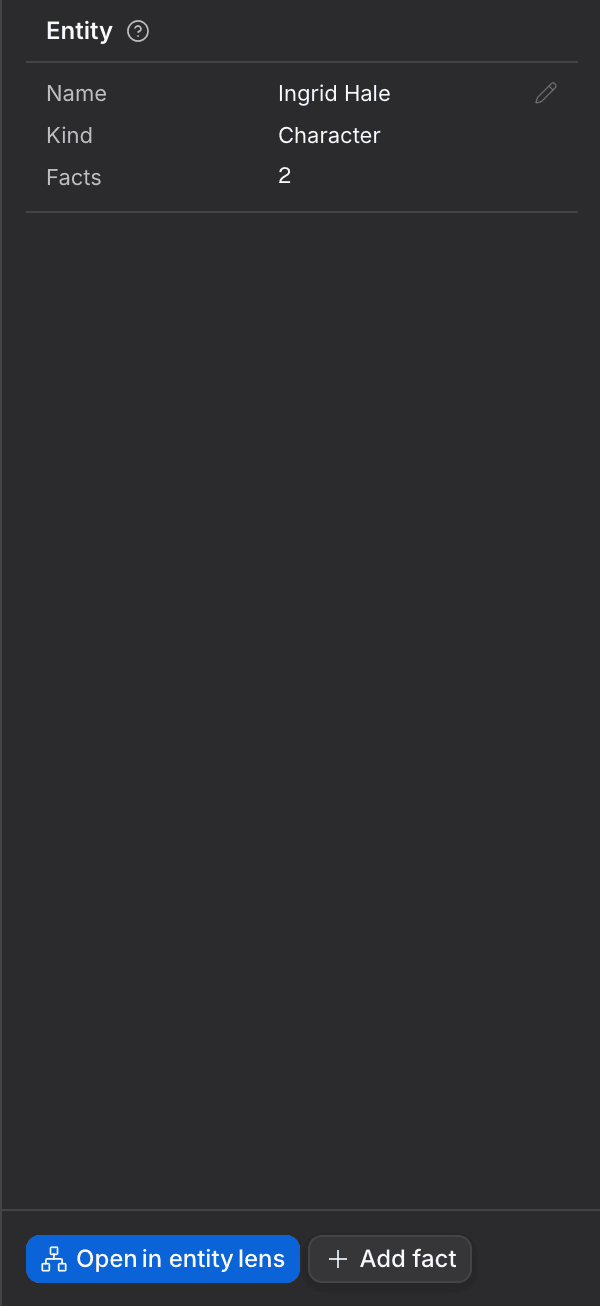
- In the Graph lens, pick an entity from the list on the left or click it in the graph.
- On the Details tab, find Entity.
- Click Name to rename it. The asset it stands for takes the new name too.
- Press Open in entity lens for its full record.
- Name: the entity's name, shared with its asset.
- Kind: character, location, prop or faction.
- Facts: how many facts are about it.
For agents
asset_write (type: asset_update)— fields:assetId,fields.name
Facts
What is known about this entity, one fact per row. Use Add fact to tell the World something new about it.
- Pick an entity in the Graph or Entity lens.
- Switch the right panel to Facts.
- Press Add fact to write a new one about this entity.
For agents
world_fact (type: world_facts_upsert)— fields:worldId,subject,predicate,object,subjectId
Links
How many relationships this entity has to others in the World.
- Pick an entity in the Graph or Entity lens.
- Switch the right panel to Links to see how many relationships it has.
Event
Something that happens in your story: its name, when it happens, the era it belongs to and who takes part. Edit the name and time here.
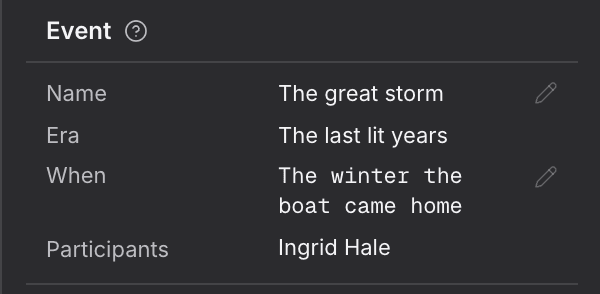
- Open the Timeline lens.
- Pick an era on the left, then click an event.
- On the Details tab, click Name or When to change it, and leave the row to save.
- Name: what happens.
- Era: the stretch of story time it falls in.
- When: the event's time in the story.
- Participants: who takes part.
For agents
world_fact (type: world_event_update)— fields:eventId,fields.name,fields.era,fields.when
Changes
What this event changes in the World, one change per row.
- In the Timeline lens, click an event.
- Switch the right panel to Changes to read what the event changes, one row each.
Fact
One thing that is true in this World, written as subject, predicate and object, with how sure you are of it. Edit any part here, or retract it once it stops being true.
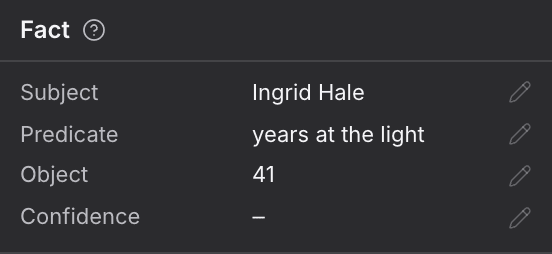
- Open the Facts lens and click a fact in the table.
- On the Details tab, click Subject, Predicate, Object or Confidence to change it. None of the first three can be left blank.
- Press Retract when the fact stops being true. It stays in the table, struck through.
- Press Add fact to write another fact about the same subject.
- Subject: who or what the fact is about.
- Predicate: the link, such as "owns" or "lives in".
- Object: the other side of the link.
- Confidence: how sure you are.
For agents
world_fact (type: world_fact_update)— fields:factId,op.fields.subject,op.fields.predicate,op.fields.object,op.fields.confidenceworld_fact (type: world_fact_retract)— fields:factId
Provenance
Where this fact came from, when it was added and how many times it has changed.
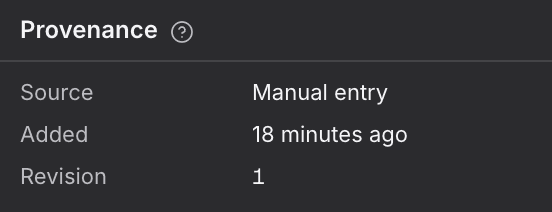
- In the Facts lens, click a fact.
- On the Details tab, find Provenance under the fact.
- Source: where the fact came from.
- Added: how long ago it was written.
- Revision: how many times it has changed.
Usage
How many shots lean on this fact and how many conflicts it is part of. Check it before you change the fact, and pick a row to see them.
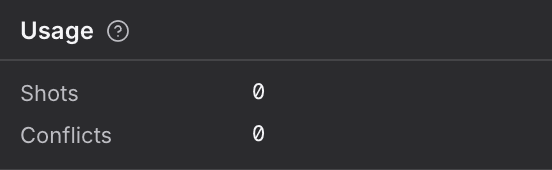
- In the Facts lens, click a fact.
- On the Details tab, find Usage.
- Pick Shots to see the shots that use the fact, or Conflicts to see the conflicts it is part of. A row with nothing to show does not open.
Citations
The sources that back this fact up, each with the words it quotes. Use Add citation to add another.
- In the Facts lens, click a fact.
- Switch the right panel to Citations.
- Press Add citation, enter the source and the quote, and save. Citations add up; nothing replaces an earlier one.
For agents
world_fact (type: world_fact_update)— fields:factId,op.field,op.source,op.quote
Journey
The events this entity takes part in, in story order. Pick one to see it on the timeline.

- Open the Entity lens and pick an entity on the left.
- Read Journey for every event it takes part in.
- Use the switch in the page bar to see every record, or only what had happened by the story time on the dock.
- Pick an event to open it on the timeline.
Possessions
What this entity holds, or for a prop, who holds it. Pick a row to see the link in the graph.

- Open the Entity lens and pick an entity.
- Read Possessions for what it holds. For a prop, the card is called Custody and lists who holds it.
- Pick a row to see that link in the graph.
Relationships
Everyone and everything this entity is connected to, and how. Pick a row to see it in the graph.

- Open the Entity lens and pick an entity.
- Read Relationships for everyone and everything it is linked to, and the kind of link.
- Pick a row to see that link in the graph.