Animation preview
Walk around a shot's 3D blocking before you generate it, and see who stands where at every moment.
An animation preview is a rough 3D blocking of one shot, made by your connected model from the shot's saved assets and beats. It is a plan you can look around, not generated video, and nothing on this page charges credits or changes the shot.
Open it from a shot with Open full preview, under the storyboard. Back to shot returns you to the shot. If the shot has no preview yet, the page says so and gives you a request to copy under Ask your connected model.
Author's notes
What the model that made this preview says it settled, in its own words.
- Open a shot's full preview.
- Read the notes under the bar at the top, beside the Previsualization, not generated media chip.
- The notes are the model's own words about what it settled, shown as written.
- They only appear when the model left notes.
- The bar also names the model that made the preview, its revision and when it was made.
For agents
shot_manage (type: animation_preview_set)— fields:notes
Animation preview
The preview at a glance: how long it runs, how many setups and subjects it has, and which model made it when.
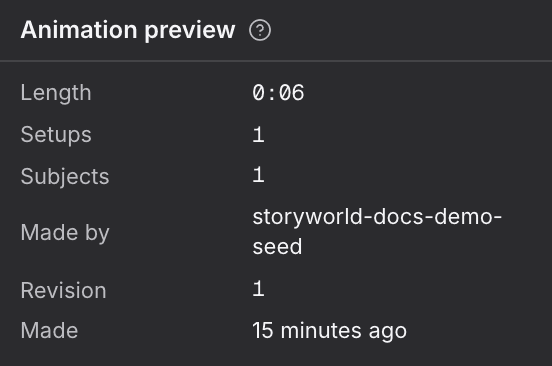
- Open a shot's full preview with nothing selected. The summary is at the top of the right panel.
- Press play under the set, or drag the position slider to scrub.
- Click a bar on the timeline to jump to it, or to select the subject it belongs to.
| Row | What it shows |
|---|---|
| Length | How long the preview runs. |
| Setups | How many cameras it has. |
| Subjects | How many people and things move in it. |
| Made by | The model that made it. |
| Revision | Which version of the preview this is. |
| Made | How long ago it was made. |
In the middle, drag the set to orbit around it, right-drag, shift-drag or swipe with two fingers to pan, and scroll or pinch to zoom. Click a subject to select it. Beside it, the Director's monitor shows what the Live camera sees at the same moment. Under both, the timeline has rows for time, beats, cameras, actions and dialogue. Nothing here can be dragged or edited.
For agents
sequence_read (type: animation_preview_get)— fields:sequenceId,n
Stage
The set the preview stands on: its floors, marks, set pieces and bounds.
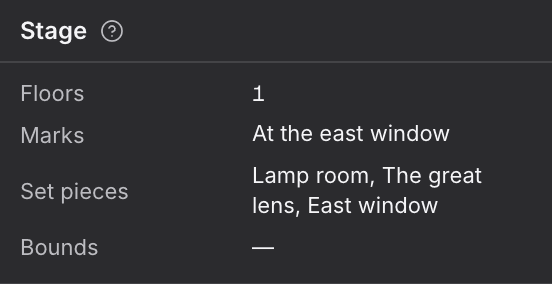
- Open a shot's full preview with nothing selected.
- Find Stage in the right panel.
| Row | What it shows |
|---|---|
| Floors | How many floor areas the set has. |
| Marks | The named spots people move to. |
| Set pieces | The objects that build the set. |
| Bounds | The corners of the space the set fills. |
For agents
shot_manage (type: animation_preview_set)— fields:stage.regions,stage.anchors,stage.primitives,stage.bounds
Subjects
Everyone and everything that moves in the preview. Click one to see where it is right now.
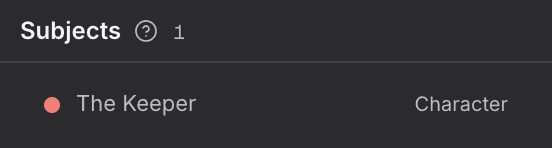
- Open a shot's full preview with nothing selected.
- In Subjects, click a row to select that subject.
- Each row has the colour the subject wears in the set and on the timeline.
- A subject not in the set at the current moment is marked Not placed now.
- You can also select a subject by clicking it in the set.
For agents
shot_manage (type: animation_preview_set)— fields:subjects,tracks
Setups
Each camera in the preview, with when it is live and how wide it sees. The live one is marked.
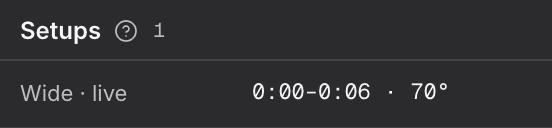
- Open a shot's full preview with nothing selected.
- Find Setups in the right panel.
- Scrub the timeline and watch the live mark move to the camera in use.
Each row names a camera, the stretch of time it is live, and how wide it sees in degrees. The Director's monitor shows the live one.
For agents
shot_manage (type: animation_preview_set)— fields:cameras
Subject
The subject you selected: what kind it is, which asset it stands for and its size.
- Click a subject in the set, on the timeline, or in Subjects.
- Read its card at the top of the right panel. The card's head is the subject's name.
- Choose Show the preview to clear the selection and go back to the summary.
| Row | What it shows |
|---|---|
| Kind | What sort of subject it is. |
| Asset | The asset in your project it stands for. |
| Size | The size it was given in the set. |
For agents
shot_manage (type: animation_preview_set)— fields:subjects.kind,subjects.assetId,subjects.dimensions
State at the playhead
Where the selected subject is at this moment: its position, facing, posture, condition and who carries it. Scrub the timeline to watch it change.
- Select a subject.
- Read its state under the Subject card. The head shows the moment, such as State at 0:02.4.
- Scrub the timeline to watch the rows change. While the subject is not in the set, the card says so instead.
| Row | What it shows |
|---|---|
| Position | Where the subject stands. |
| Facing | Which way it faces. |
| Posture | How it holds itself, when the model gave one. |
| Condition | What state it is in, when the model gave one. |
| Carried by | Who is carrying it, if anyone. |
For agents
shot_manage (type: animation_preview_set)— fields:tracks.keyframes