Cut
Assemble a sequence's takes into one finished film, then mix, grade, caption and download it.
The Cut screen is where a sequence becomes a finished film: you order its takes on the timeline, balance the sound, set the look, add captions and download the result. To reach it, open a sequence and click Open in Assembly at the top of the timeline dock. The browser on the left holds what you can add, the viewer and timeline sit in the middle, and the inspector on the right shows the details of whatever you select, or of the whole sequence when nothing is selected.
Takes
Every take of every shot in this sequence, grouped by shot. Drag one onto the timeline to use it, or click it to select the clip that plays it.
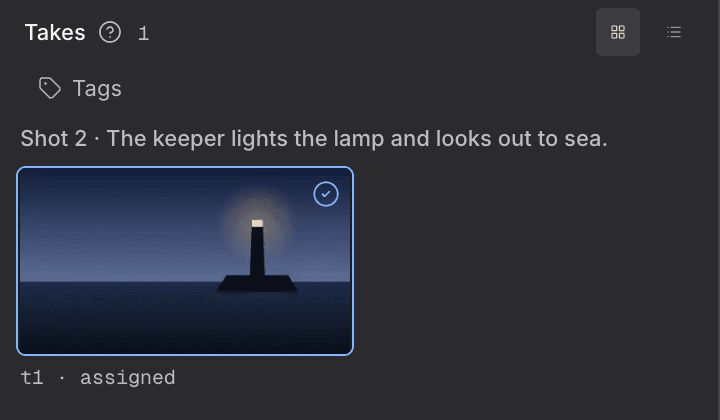
- Click Takes at the top of the browser.
- Narrow the list with the tag filter if you are looking for takes you have marked.
- Switch between Filmstrip and List to see pictures or a compact list.
- Drag a take onto the timeline to place it, or click it to select the clip that already plays it.
- Shot headings group the takes by the shot they belong to.
- Take label shows the take's number and the model that made it.
- A take that is still being made says so and cannot be dragged until it is ready.
For agents
generation_read (type: gen_takes_list)— fields:sequenceId,ncut_edit (type: cut_lane_clip_add)— fields:lane,clip.takeIdcut_edit (type: cut_picks_place)— fields:sequenceId
Media
The pictures and clips in this production's library. Drag one onto the timeline to put it in the cut.
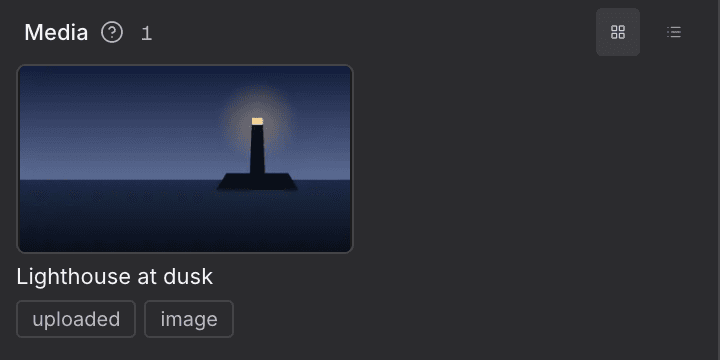
- Click Media at the top of the browser.
- Switch between Filmstrip and List to change how the files are drawn.
- Double-click a file to look at it full size.
- Drag a picture or clip onto the timeline to put it in the cut. A still picture arrives four seconds long.
- Name and kind tell similar files apart.
- Documents are listed but cannot be dragged into the cut.
For agents
asset_read (type: media_list)— fields:scope,kindcut_edit (type: cut_lane_clip_add)— fields:lane,clip.mediaId
Project media
The sound files in this production. Drag one onto a sound row to use it, or double-click it to listen.

- Click Audio at the top of the browser.
- Drag a sound file onto a sound row of the timeline. Double-click it to listen first.
- To add a voice-over, click Record VO at the foot of the tab, or drop a sound file on it. The file is uploaded and placed at the playhead.
- Name and length are shown on each row.
For agents
asset_read (type: media_list)— fields:kindcut_edit (type: cut_lane_clip_add)— fields:lane,clip.mediaIdmedia_upload_link— fields:name,projectId
In the cut
What of this kind is already on the timeline, in order. Click a row to select it and edit it on the right.

This card appears on two tabs of the browser, and lists what of that tab's kind is already on the timeline.
On the Audio tab
- Click Audio at the top of the browser and scroll to In the cut.
- Click a sound clip to select it. The inspector on the right shows its levels and routing.
On the Captions tab
- Click Captions at the top of the browser.
- Click + beside the heading to add a new caption at the playhead, then type its words in the inspector.
- Click a caption to select it and edit it on the right.
- Length (sound) or start time (captions) is shown on each row.
For agents
sequence_read (type: seq_cut_get)— fields:sequenceIdcut_edit (type: cut_lane_clip_add)— fields:lane,clip.labelcut_finish (type: cut_caption_update)— fields:clipId,label
This production
Saved Looks that belong to this production. Click one to apply it to what you have selected, or to the whole sequence when nothing is.

- Click Looks at the top of the browser.
- Select a clip or a row item on the timeline, or select nothing to grade the whole sequence. The line at the foot of the tab says what a Look will apply to.
- Click a Look to apply it.
- Use the ⋯ menu on a Look to archive, restore or delete it. Deleting a Look leaves clips that already use it unchanged.
- Archived Looks are hidden until you show them with the archived toggle.
- To save a new Look, grade a clip and use Save as Look on the inspector's Color tab.
For agents
cut_finish (type: cut_look_apply)— fields:clipId,lookcut_finish (type: cut_look_archive)— fields:lookIdcut_finish (type: cut_look_restore)— fields:lookId
The World
Saved Looks shared by every production in this World. They apply the same way, but archiving or deleting one reaches every production that uses it.

- Click Looks at the top of the browser and find The World.
- Click a Look to apply it the same way as one from this production.
- Archive or delete with care: these Looks are shared by every production in the World.
- To save a Look for the whole World, grade a clip and choose The whole World under Save as Look on the inspector's Color tab.
For agents
cut_finish (type: cut_look_apply)— fields:clipId,lookcut_finish (type: cut_look_create)— fields:name,scope,valuescut_finish (type: cut_look_archive)— fields:lookIdcut_finish (type: cut_look_restore)— fields:lookId
Adjustment
Adds a grade that covers a stretch of time, so every clip beneath it takes the same look. It starts at the playhead and trims like any other clip.
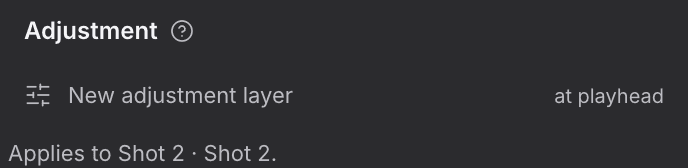
- Move the playhead to where the grade should begin.
- Click Looks at the top of the browser, then New adjustment layer.
- The new layer is selected. Grade it in the inspector, then trim it on the timeline to cover the shots you want.
For agents
cut_edit (type: cut_lane_clip_add)— fields:lane,clip.adjustment
Roles
One fader for each kind of sound, such as dialogue or music. Balance, mute or solo a whole role at once.
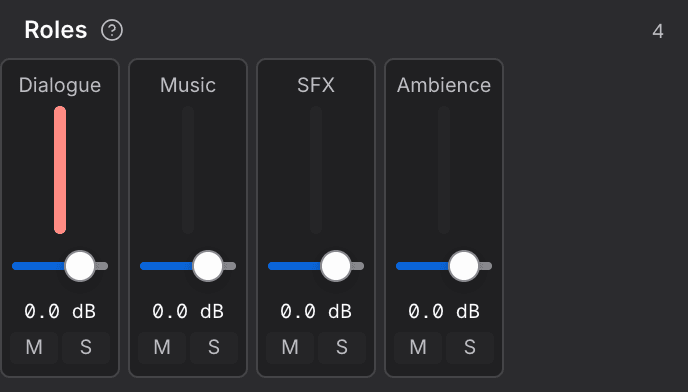
- Click Mixer at the top of the browser, or press ⇧M.
- Drag a role's fader to set its level.
- Click M to mute a role or S to hear it on its own.
- Fader sets the role's level in the mix.
- Mute and Solo change the mix itself. Hiding a role on the timeline only changes what you see.
For agents
sequence_read (type: seq_cut_mix_get)— fields:sequenceIdcut_manage (type: cut_update)— fields:op.role,op.patch
Master
The level of the whole mix, with its predicted peak and how far it sits from your loudness target. Use Normalize to bring it down to the target.
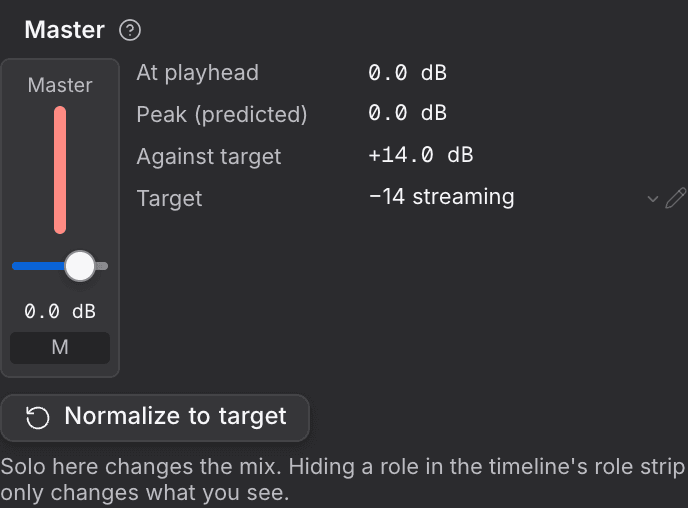
- Open the Mixer and find Master under the role strips.
- Drag the master fader to raise or lower the whole mix.
- If the mix runs over the target, click Normalize to target and confirm. The master moves down so the predicted peak lands on the target, and you can undo it.
- At playhead: how loud the mix is where the playhead sits.
- Peak (predicted): the loudest point the mix will reach.
- Against target: how far over or under the target the peak is.
- Target: the loudness you are aiming for. Click it to change it.
For agents
sequence_read (type: seq_cut_mix_get)— fields:sequenceIdcut_manage (type: cut_update)— fields:op.role,op.patch
Format
The frame shape this sequence is delivered at, and how many shots do not fill it. Click Off-format to open the conform report.
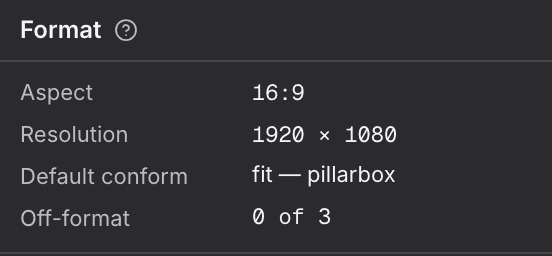
- Click an empty part of the timeline so nothing is selected. The inspector shows the sequence.
- Read Format at the top of the inspector.
- Click Off-format to open the conform report, which shows how each shot fits the frame.
- Aspect: the frame shape this sequence is delivered at, set for the project.
- Resolution, Default conform and Off-format appear once a conform report exists for the sequence.
For agents
studio_read (type: project_get)— fields:projectIdproject_write (type: project_style_update)— fields:projectId,fields.format.aspect
Sequence grade
A Look, exposure and contrast laid over the whole sequence. Set the overall feel here before you grade single clips.
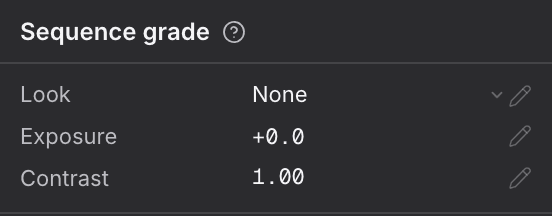
- Select nothing on the timeline so the inspector shows the sequence.
- Pick a Look from the list.
- Click Exposure or Contrast and type a value, or drag its slider.
- Look: a saved grade laid over the whole sequence.
- Exposure: brighter or darker overall.
- Contrast: the gap between light and dark.
For agents
cut_manage (type: cut_update)— fields:op.patch
Loudness
How loud the finished film should be and the highest peak it may reach. The predicted rows show whether the mix fits.
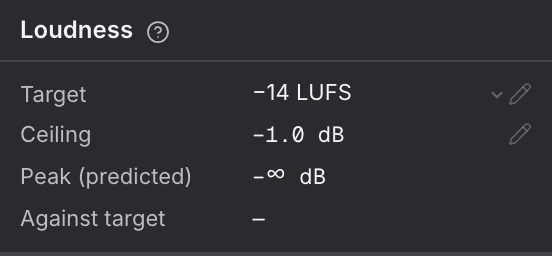
- Select nothing on the timeline so the inspector shows the sequence.
- Click Target and type how loud the finished film should be.
- Click Ceiling and type the highest peak it may reach.
- Check Against target to see whether the current mix fits.
- Target and Ceiling are yours to set.
- Peak (predicted) and Against target are worked out from the mix as it stands.
For agents
cut_manage (type: cut_update)— fields:op.patchsequence_read (type: seq_cut_mix_get)— fields:sequenceId
Delivery
The size, frame rate and file type of the finished film, drawn at your project's shape, so a 9:16 project downloads tall. Captions and titles are placed as a share of this frame, so they keep their place at any size.
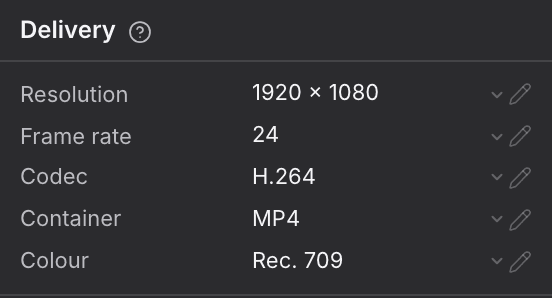
- Select nothing on the timeline so the inspector shows the sequence.
- Click a row and pick or type its value.
- When the cut is ready, click Download in the page bar. The file is saved to your computer when it is done.
- Resolution: the size of the finished frame.
- Frame rate: frames per second.
- Codec, Container and Colour: the kind of file you get.
For agents
cut_manage (type: cut_update)— fields:op.patchcut_finish (type: cut_download)— fields:sequenceId
Caption & title placement · cut default
Where captions and titles sit on screen, and how they look, for every line you have not placed by hand. Drag on the small frame or type exact values.
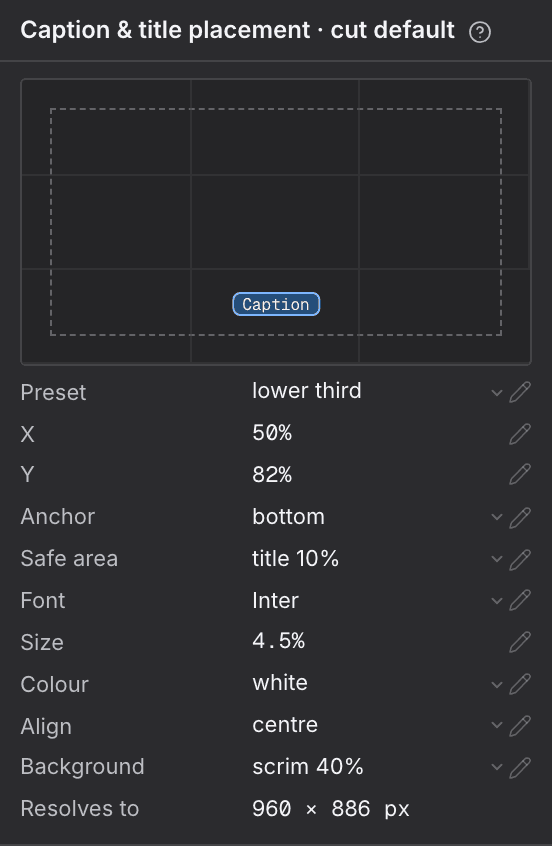
- Select nothing on the timeline so the inspector shows the sequence.
- Drag the Caption marker in the small frame to where lines should sit. The dashed box is the safe area, and the marker stays inside it.
- Or pick a Preset, such as lower third, top or centre, and fine-tune X and Y.
- Set how the words look with Font, Size, Colour, Align and Background.
- X and Y: the position, as a share of the frame, so it holds at any delivery size.
- Anchor: which point of the line sits on that position.
- Safe area: how far from the edge words must stay.
- Resolves to: the exact spot on the delivered frame.
For agents
cut_finish (type: cut_caption_track_update)— fields:patch
Cut settings
Turns snapping on or off, and shows how many sound roles you can hear and how long the cut runs.
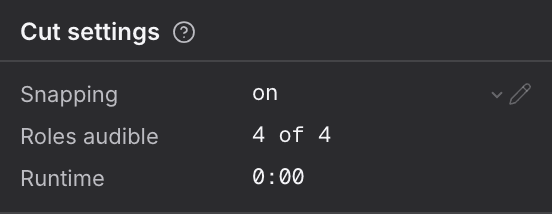
- Select nothing on the timeline so the inspector shows the sequence.
- Click Snapping to turn it on or off.
- Snapping: whether items snap into place as you drag them.
- Roles audible: how many sound roles you can hear right now.
- Runtime: how long the cut runs.
For agents
cut_finish (type: cut_caption_track_update)— fields:patchcut_manage (type: cut_update)— fields:op.name,op.audible
Range
The stretch of time you marked on the timeline, with its start, end and length. Lift it to leave a gap, or delete it to close the gap up.
- Move the playhead and press I to mark the start, then move it and press O to mark the end.
- Read the range's details in the inspector.
- Click Lift to take the picture out and leave a gap, or Delete to take it out and close the gap up.
- Use Apply a Look or Apply a grade or effect to change every clip the range crosses, or Loop to play it over and over.
- In and Out: where the range starts and ends.
- Duration: how long it is.
- Clips crossed: how many clips it touches.
For agents
cut_edit (type: cut_range_edit)— fields:op.lane,op.start,op.end
Transition in
How this clip begins as the one before it ends: a straight cut or a blend. Choose the kind and how long it lasts.
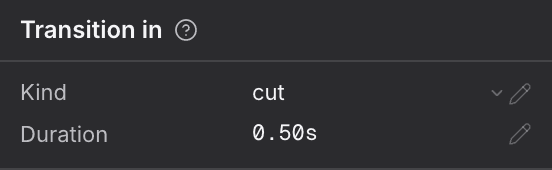
- Select a clip on the storyline and open the Video tab of the inspector.
- Pick a Kind. Choose cut to remove a transition.
- Click Duration and type how many seconds it lasts.
- Kind: how this clip arrives from the one before it.
- Duration: how long the blend takes.
For agents
cut_edit (type: cut_transition_set)— fields:clipId,kind,dur
Compositing
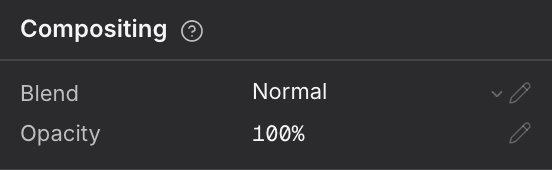
How this clip mixes with the picture beneath it. Change the blend mode or make it partly see-through.
- Select a clip and open the Video tab of the inspector.
- Pick a Blend mode or type an Opacity.
- Blend: how this picture combines with what is beneath it.
- Opacity: how see-through it is.
For agents
cut_edit (type: cut_clip_update)— fields:clipId,op.patch
Transform
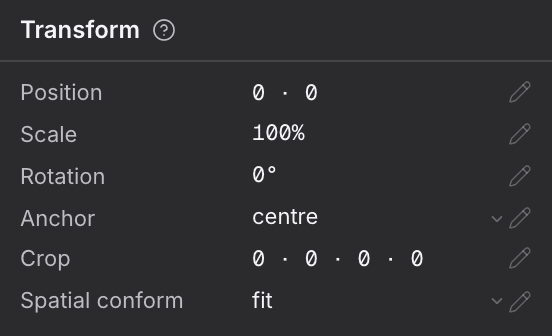
Move, resize, rotate or crop the picture inside the frame. Spatial conform chooses whether a differently shaped picture fits, fills or keeps its own size.
- Select a clip and open the Video tab of the inspector.
- Click a row and type a value, or drag its slider.
- Position, Scale and Rotation: where the picture sits, how big it is and its angle.
- Anchor: the point it turns and scales around.
- Crop: trims the edges.
- Spatial conform: fit shows the whole picture, fill covers the frame, and none keeps the picture's own size.
For agents
cut_edit (type: cut_clip_update)— fields:clipId,op.patch
Retime
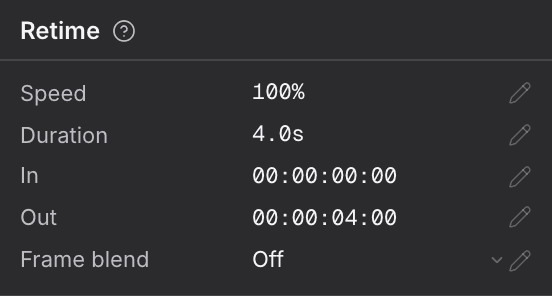
Speed this clip up or slow it down, and choose which part of the source plays. Frame blend smooths slow motion.
- Select a clip and open the Video tab of the inspector.
- Type a Speed to speed it up or slow it down.
- Set In and Out to choose which part of the source plays.
- Duration: how long the clip runs in the cut.
- In and Out: measured on the source, so you can always widen them again.
- Frame blend: smooths motion when the clip is slowed down.
For agents
cut_edit (type: cut_clip_update)— fields:clipId,op.patch
Effects
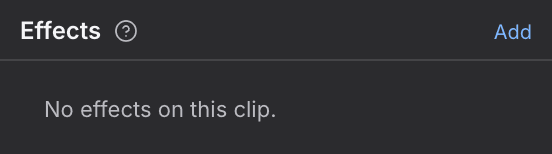
Extra picture effects on this clip, such as a colour key or a mask. Use Add to put one on, and switch each one off to compare.
- Select a clip and open the Video tab of the inspector.
- Click Add beside Effects and pick Keyer or Mask.
- Set the effect's values, switch it off to compare, or remove it.
- Keyer: removes a colour, such as a green screen, with a spill control.
- Mask: limits the picture to a shape, with its centre, size and feather as shares of the frame.
For agents
cut_edit (type: cut_clip_update)— fields:clipId,op.ops,op.patch
Keyframes
Values that change over the length of this clip, such as a slow push in or a speed ramp. Edit each point's value here.
- Select a clip that has changing values and open the Video tab of the inspector.
- Find the value you want, such as scale or a speed ramp.
- Click a point and type its new value.
- Each point shows its time and how it eases into the next one.
For agents
cut_edit (type: cut_clip_update)— fields:clipId,op.patch
Ingest colour
The colour space every source is brought into, with an override for a clip that was shot differently. Use Override only when a clip looks wrong as it arrives.
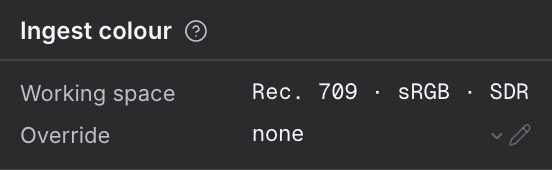
- Select a clip and open the Color tab of the inspector.
- Scroll below the grade sections to Ingest colour.
- If the clip's colours look wrong as they arrive, set Override to tell Rasu AI how the source was recorded.
- Working space: the one colour space every source is brought into. It cannot be changed.
- Override: how to read this clip's source.
For agents
cut_edit (type: cut_clip_update)— fields:clipId,op.patch
Segment
The words of this caption and when it comes up and goes away. Type the text and set exact start and end times.
- Select a caption on the timeline or in the browser's Captions tab.
- Click Text and type the words.
- Click Start or End and type a time in seconds.
- Use Split and Merge below to cut a caption at the playhead or join it with the next one.
- Start: moving it keeps the end where it is.
- End: must come at least a frame after the start.
- Notes under the card point out captions that are too fast to read, too long or too close together. They never stop you.
For agents
cut_finish (type: cut_caption_update)— fields:clipId,labelcut_edit (type: cut_clip_update)— fields:clipId,op.start,op.dur
Placement · this caption
Where this one caption sits and how it looks, in place of the cut default. Use it to move a line off a face or a sign.
- Select a caption and open the Captions tab of the inspector.
- Drag the marker or change any row. Only this caption moves.
- Click Follow the cut default to put it back with the others.
- The rows are the same as the cut default's.
- Overrides: which values this caption sets for itself.
For agents
cut_finish (type: cut_caption_track_update)— fields:clipId,patch
Levels
How loud this clip is, how it fades in and out, and where it sits between left and right.
- Select a clip or sound clip and open the Audio tab of the inspector.
- Click a row and type a value, or drag its slider.
- Level: how loud the clip is.
- Fade in and Fade out: how long the sound takes to rise and fall.
- Pan: left or right.
For agents
cut_edit (type: cut_clip_update)— fields:clipId,op.patch
Routing
Which sound role this clip plays in the mix, its channel layout, and whether its pitch holds when its speed changes.
- Select a clip or sound clip and open the Audio tab of the inspector.
- Pick the Role the clip belongs to in the mix.
- Role: which mixer strip it plays through, such as dialogue or music.
- Channels: its channel layout.
- Preserve pitch: keeps voices sounding natural when the speed changes.
For agents
cut_edit (type: cut_clip_update)— fields:clipId,op.patch
Audio effects
Sound effects on this clip, such as EQ, a compressor or ducking under dialogue. Use Add to put one on, and switch each one off to compare.
- Select a clip or sound clip and open the Audio tab of the inspector.
- Click Add beside Audio effects and pick one.
- Set its values, switch it off to compare, or remove it.
- EQ, Compressor, Limiter, De-esser and Reverb shape the sound.
- Auto-duck lowers this clip while another role, such as dialogue, is playing.
For agents
cut_edit (type: cut_clip_update)— fields:clipId,op.ops,op.patch
Split edit
Lets this clip's sound start before or run past its picture. It appears once you expand the clip's audio.
- Select a clip on the storyline and open the Audio tab of the inspector.
- Click Expand so the clip's sound gets its own handles.
- Set Lead to start the sound before the picture, or Trail to let it run on after.
- Click Collapse to fold it back, or Detach to move the sound onto its own row.
- Offset: how far the sound is shifted from the picture.
- Lead and Trail: how much sound plays before and after the picture.
For agents
cut_edit (type: cut_clip_update)— fields:clipId,op.patch
Placement
Where the selected item sits on the timeline: its source, row, start and length.
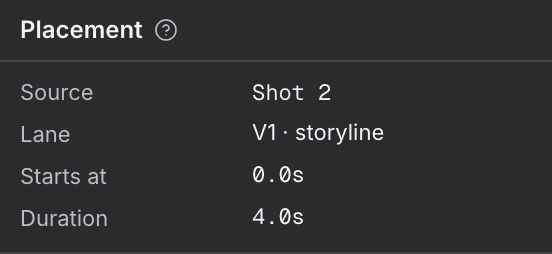
- Select anything on the timeline and open the Details tab of the inspector.
- Read where it sits. For an item off the storyline, pick what it is tied to with Anchor.
- Source: the take or file it plays.
- Lane: the timeline row it sits on.
- Starts at and Duration: its place in time.
- Anchor: whether it follows a storyline clip, a shot slot or the start of the sequence.
For agents
sequence_read (type: seq_cut_get)— fields:sequenceIdcut_edit (type: cut_clip_update)— fields:clipId,op.start,op.lane
Provenance
Where this clip's picture came from: the model that made it, what it cost, and how many takes the shot has. Click Takes to see them all.
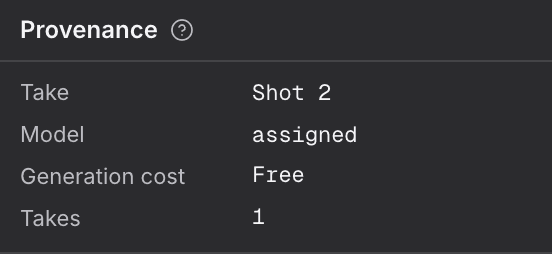
- Select a clip on the storyline and open the Details tab of the inspector.
- Click Takes to see every take of the shot.
- Use the arrows or Replace take below to try another take in this clip.
- Take, Prompt version and Model: what made this picture.
- Generation cost: what the take cost to make.
- Origin: shown instead when the clip was imported or has no take yet.
For agents
sequence_read (type: seq_cut_clip_provenance_get)— fields:sequenceId,clipIdcut_edit (type: cut_clip_take_replace)— fields:clipId,take
Review
A note on this clip for whoever looks next, and its change history. Click History to see every edit.
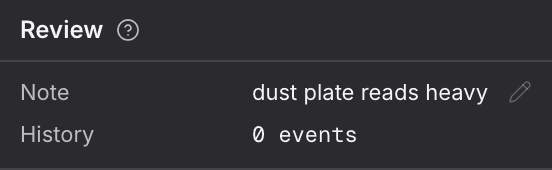
- Select a clip and open the Details tab of the inspector.
- Click Note and type what you want the next person to know.
- Click History to see every change made to this clip.
For agents
cut_edit (type: cut_clip_update)— fields:clipId,op.patch