Sequences
Order your sequences, open one as a board of shots, and set what every shot in it shares.
A sequence is a run of shots that plays as one stretch of your film. The Sequences page lists them in story order, and opening one shows its board: every shot side by side, with the settings they share on the right.
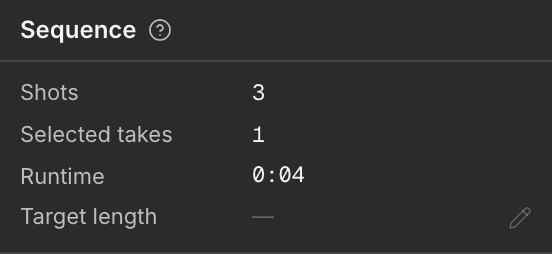
Sequence
The sequence you have selected: its name, how many shots it holds and how many have a take picked. On its board, it also says how long its cut runs.
- Open a project and choose Sequences.
- Click a sequence in the list to select it. The Sequence card on the right describes it.
- Select Name and type a new one. It saves on its own.
- Choose Open sequence to go to its board.
- To change the story order, drag a sequence by its grip. Dragging works while the list is sorted by order.
| Row | What it shows |
|---|---|
| Name | The sequence's name. You can edit it here. |
| Shots | How many shots the sequence holds. |
| Selected takes | How many of those shots have a take picked for the cut. |
| Runtime | How long the sequence's cut runs. Shown on the board only. |
Under the card, Tags holds words you add to find and group sequences. The list also has a sort menu (order, name, shots, selected), a switch between list and grid views, and New sequence. The filter rail on the left searches by name and narrows by status, team and tags, and Show archived brings archived sequences back into view.
On a sequence's board the same card sits on the right while no shot is open, with Runtime in place of Name. The page bar there has the sequence picker, the Overview and Script views, Play reel, and a menu with Import…, History… and Delete sequence.
For agents
sequence_read (type: seq_sequence_get)— fields:sequenceIdsequence_write (type: seq_sequence_update)— fields:sequenceId,rev,fields.namesequence_write (type: seq_sequence_reorder)— fields:projectId,order
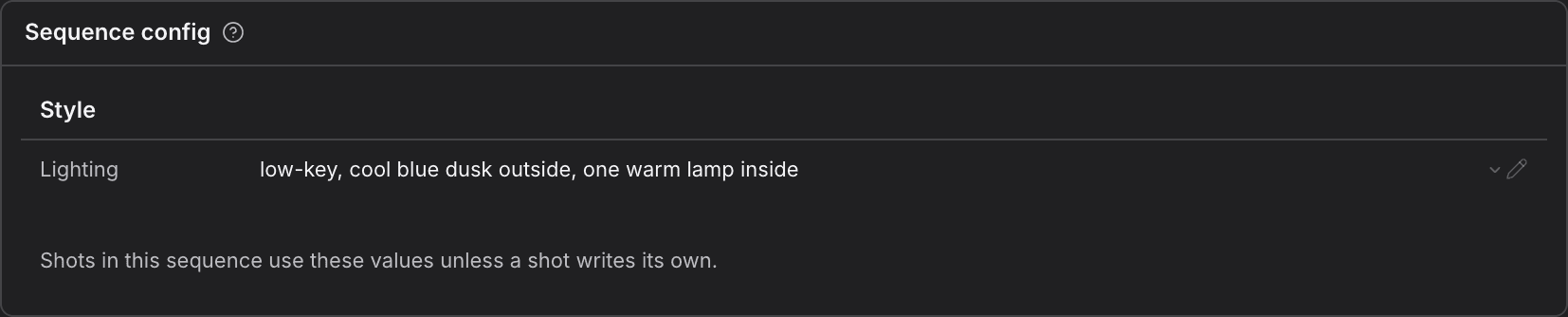
Sequence config
Settings every shot in this sequence shares. A shot uses these words until it writes its own.
- Open a sequence's board.
- In Sequence config on the right, find the row you want to set, such as Lighting under Style.
- Choose the pencil on the row and pick a value, or choose Write your own and type it.
Shots in the sequence use these values unless a shot writes its own. On a shot, a row filled from here wears a Sequence tag, and its pencil menu offers to go back to the shared value.
For agents
sequence_write (type: seq_sequence_update)— fields:sequenceId,rev,fields.lighting
Shots
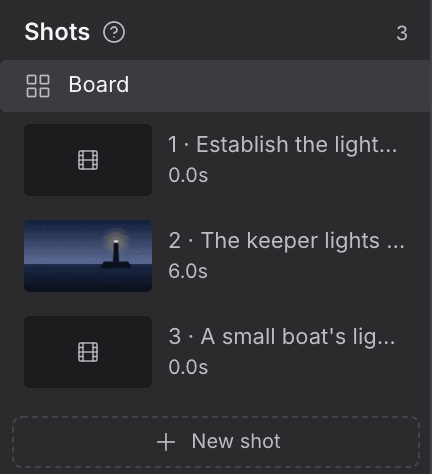
Every shot in this sequence, in order. Click one to open it, or add a new one at the foot of the list.
- Open a sequence's board. The Shots list is on the left.
- Click a shot to open it, or Board to come back to every shot side by side.
- To add one, choose New shot at the foot of the list.
- To change the order, go to the board and drag a shot card by its grip.
On the board, click a shot card to select it. Its details show on the right, with Open shot at the foot. Double-click the card, or press Enter, to open the shot. Press Space to see its picture larger. On a take, Use in cut makes it the take the shot plays. Clips in the dock at the foot of the page work the same way: click to select the shot, double-click to open it.
- Each row shows the shot's picture, its number and what happens in it, its length, and how many fields it is still missing.
- An amber dot marks a shot with fields still missing.
At the foot of the board you can also choose New shot or Request a shot, open the shelf of archived shots, and use the Shot size slider to make the cards larger or smaller. The slider is hidden in the Script view.
For agents
sequence_read (type: seq_shots_list)— fields:sequenceIdseq_shot_create— fields:sequenceId,n,intentshot_manage (type: seq_shot_reorder)— fields:sequenceId,order